INEMA.CLUBPROMotion RISE v6

Motion RISE v6 · 10 lessons of about 15 minutes

Animations made from a request

In ten short lessons, you’ll learn to request finished animations from AI: moving slides, reels with captions, animated logos, and the same piece in several sizes. Using Claude Opus 5.5 and the RISE method. No editing program needed.

A pastry chef and a real estate agent sit side by side at a wooden table, looking at a laptop showing colorful shapes in motion.

The lessons

Lesson 1 of 10

An animation made from a request

A pastry chef in an apron in her studio looks surprised at a laptop showing a line of light passing through three points.

You can paste a ready-made request into an AI chat and get a 10-second animation without opening any editing software.

A still post gets lost among all the videos. Ordering an animation costs a lot and takes days. Today, you can ask for one in writing and get the finished animation in the conversation.

In 1 minute

  1. The AI writes drawing instructions for each frame. It’s not an invented video.
  2. You describe it, the AI draws and checks it. You make the final call.
  3. A good request has four parts. Today, you’ll use a ready-made one; in lesson 2, you’ll understand each part.

1The animation is drawn, not filmed

Claude Opus 5.5 doesn’t create a video like a camera. It writes drawing instructions. The browser reads those instructions and draws each frame, many times per second.

Because it’s a set of instructions, the result can be repeated. The same instructions always draw the same animation, with the letters spelled correctly.

A baker wanted to show the three steps of an order: order, oven, and delivery. The animation below came from a single request. It’s running now, on this page.

A real animation, made from a single request: a beam lights up the three steps and returns to the beginning.

2Drawing from a request is different from generated video

Some tools invent video from a sentence. They work well for scenes with people and landscapes. For text, logos, and numbers, drawing from a request usually works better.

A real estate agent needed an opening with the agency’s name. In the generated video, the name came out with the letters mixed up. In the drawn animation, the name was spelled correctly.

Generated video

Good for people, places, and atmosphere.

Letters and logos sometimes come out crooked. Every try comes out differently.

Drawn animation

Good for text, numbers, shapes, and branding.

The same request draws the same thing. Changing a color means changing a word.

Both have their uses. In this course, you’ll learn the Drawn animation method.

3Paste the request and the animation appears in the conversation

Everything happens in the Claude chat, in your browser. Choose the Opus 5.5 model in the selector below the message box. Paste the request and send it. If Opus 5.5 doesn’t appear, your account may not have access to it: use the most advanced model on the list.

The animation appears right in the conversation, in a frame you can tap to open. It keeps spinning: the end connects to the beginning. This is called a loop.

AI chat · Opus 5.5

YouMake a beautiful animation about my bakery.

AII made an animation with spinning stars, colorful confetti, and the phrase "Welcome to the bakery"…

Pretty and generic: it could be for any bakery in the country.

YouR: I don't have a file. Title: From request to delivery. Steps: Order, Oven, Delivery. I: A 10-second loop: a beam of light illuminates the three steps, one at a time. S: Ivory paper, black ink, one clay orange accent. Slow, gentle movement. E: Check the frames at 0%, 25%, 50%, 75%, and 100%, and fix anything that's wrong.

AIDone. The animation is in the frame below. I checked all five frames. In the first test, the title touched the edge; I moved it away and drew it again.

The AI itself found and fixed a problem before delivering the result. That's the effect of the last line.

Tap the two buttons and compare the loose request with the four-line request.

Stuck here? That's normalIf the animation doesn't appear, write "show the animation in a frame I can open here in the conversation". If it appears still, ask "make it loop".

Practice now 0/3

Make your first animation

You're done when the animation is playing in your conversation, with your three steps. On a computer or in the Claude app on your phone, about 8 minutes.

It's just a conversation: nothing is published. If it looks odd, send the same request again in a new conversation. The technical lines at the end, such as render(t) and 1920x1080, are instructions for the AI: copy them without changing anything.

R: I don't have a file. Use this content.
Title: <From request to delivery>
Steps: <Order>, <Oven>, <Delivery>
I: A 10-second loop: a beam of light travels along a timeline and illuminates the three steps, one at a time. The last frame is the same as the first.
S: Visual: ivory paper, black ink lines, one clay orange accent. Slow, gentle movement. 1920x1080.
E: Draw all the frames in code from a single render(t) function. Add real texture to make it look handmade. Before finishing, check the frames at 0%, 25%, 50%, 75%, and 100%, and fix anything that's wrong.
See the template filled in by a realtor

Title: From viewing to keys
Steps: Viewing, Offer, Closing
The rest of the request stays the same.

You just made a real animation with a written request.

Lesson cheat sheet

Animation by request

  1. Drawing recipeAI writes instructions; the browser draws each frame.
  2. Good for brandingText, numbers, and logos come out right and stay consistent.
  3. WhereClaude chat, Opus 5.5 model, animation in the conversation itself.

Your next step

You already know how to get a finished animation from a written request.

Today, change only the colors in the request (for example, "navy blue background and gold accent") and compare the two versions.

In the next lesson: the request had four lines with the letters R, I, S, and E. You'll understand what each one does and write your own from scratch.

Lesson 1 · Motion RISE v6 · INEMA.CLUB PRO

Lesson 2 of 10

Four parts: R, I, S, and E

A real estate agent at his office desk writes on four colorful notes lined up in a row, with an open laptop beside him.

You can write an animation request from scratch using the four parts of the RISE method for something you need at work.

In lesson 1, you used a ready-made request. When you write your own, it’s easy to mix everything into one sentence. Then AI guesses what you didn’t say, and guesses wrong.

In 1 minute

  1. R for References: where the colors, lettering, and logo come from.
  2. I de Ideia: começo, uma mudança e fim. S de eStilo (do inglês style): como parece e como se move.
  3. E for Examine: AI checks its own work before handing it over.

1R: the reference guides AI; AI doesn’t make things up

The reference is what AI should follow exactly. Without it, AI chooses “pretty” colors and lettering that aren’t yours.

A real estate agent asked for “something that looks like my real estate agency.” It came back in blue and gold; his brand is green. The second time, he pasted the color codes and attached the logo.

AI chat · Opus 5.5

YouMake something that looks like my real estate agency.

AII created an elegant opening in navy blue and gold, with classic lettering…

Pretty, but it isn’t his brand. AI filled in what was missing with the most common choice.

YouR: Logo attached. Colors: green #1f5c4a and sand #e8dcc4. Heading font: Newsreader (the name of a typeface). Use these exact ones.

AII used the attached logo, green #1f5c4a for the background, and sand #e8dcc4 for the headings, in Newsreader.

Nothing was made up: everything AI used was in the request.

Tap both buttons and compare the colors that came back.

2I: a beginning, one change, and an ending

A short animation is a story in three moments. What appears first, the one thing that changes, and how it ends. If it’s a loop, the ending becomes the beginning again.

Just one change. When everything moves at once, your eyes don’t know where to look.

A baker wanted a post about the cake of the week. First she asked for “cake, confetti, price, stars, and sparkle.” Then she asked for just one change: the icing drips down and reveals the price.

Everything at once

Idea: “spinning cake, falling confetti, blinking price, and sparkle.”

Result: lots of movement, no message.

One change

Beginning: the whole cake. Middle: the icing drips down and reveals the price. Ending: the icing moves back up.

Result: viewers remember the price.

3S: how it looks and how it moves

Style has two parts. Appearance: background, colors, lettering, and texture. And movement: fast or slow, what moves first, and how smoothly it moves.

The same image can feel like a different piece when the movement changes. That’s why you describe the movement too.

How it looks

"Ivory paper, black ink, a single clay orange accent, serif lettering, paper grain."

How it moves

"Slow and smooth. The title appears first, then the line. Nothing moves at a constant speed."

Both halves enter the S. Without the second one, the AI chooses a random movement.

The designer wrote "come in slowly, like a door opening." The real estate agency's opening stayed calm, just like the way they serve clients.

4E: the AI checks before delivering

The last part tells the AI to look at its own result. It draws five still frames: 0%, 25%, 50%, 75%, and 100% of the animation. It looks at each one, fixes anything that looks wrong, and draws it again.

This line goes in every request and is almost always the same. It has technical terms, such as render(t) and 1920x1080 (the size of a landscape screen). These are instructions for the AI: copy them without changing anything. Lesson 3 shows you how to check them yourself.

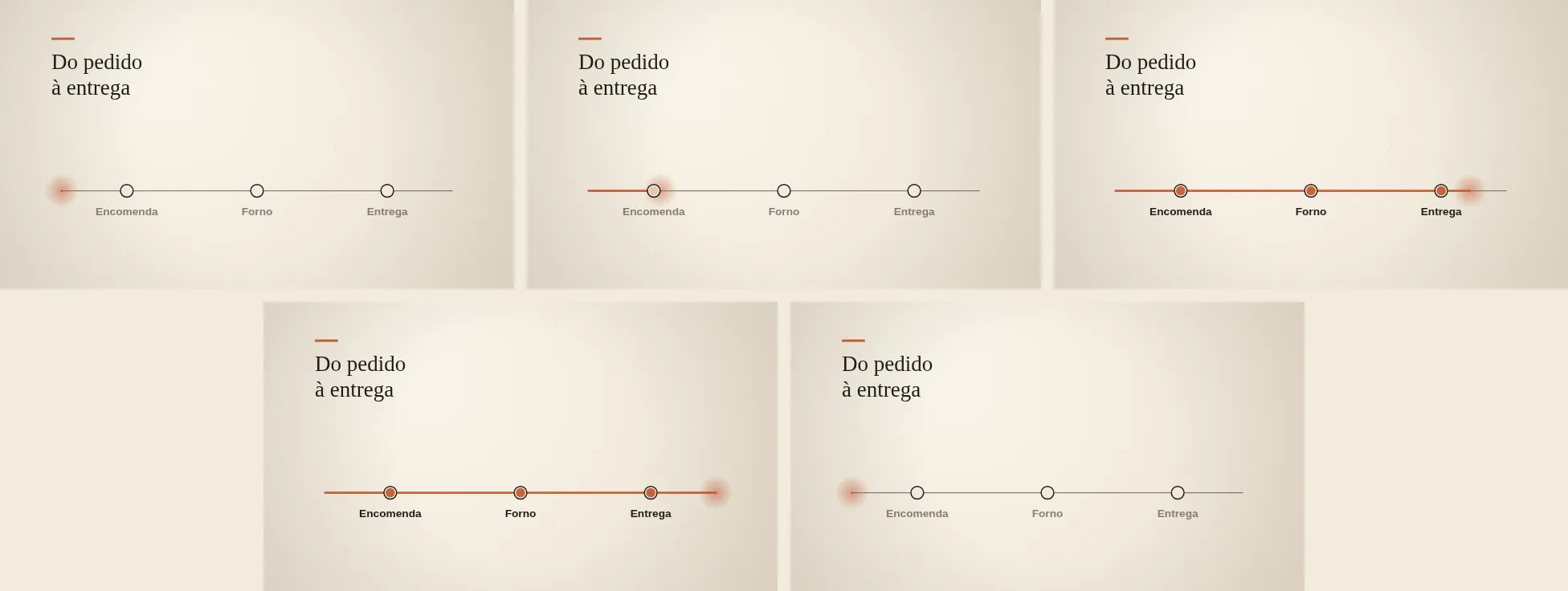
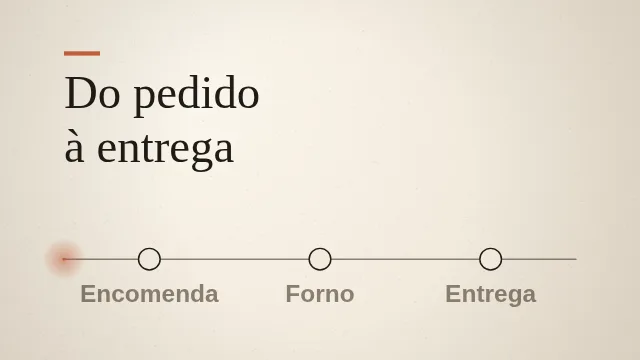
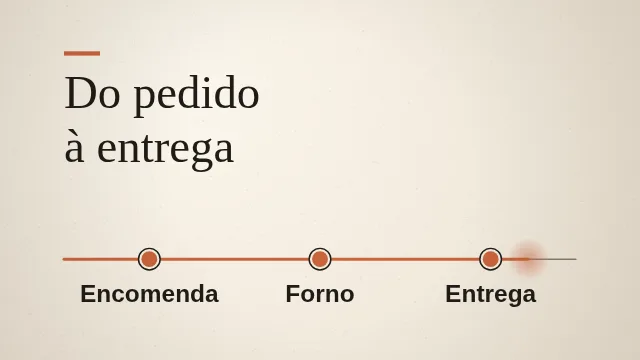
The five still frames from the lesson 1 animation: at the beginning, the beam is off; then Encomenda lights up; next, all three steps are lit; and in the last frame, everything is off again, just like the first.
The five frames of the lesson 1 animation, in order: 0%, 25%, 50% (top), 75%, and 100% (bottom). The last one is the same as the first: the loop closes without a jump.

Test yourself

The animation came back with the brand colors, but five things move at the same time. Which part of the request would you rewrite?

Stuck here? That's normalDon't know the color code? Write the color in words ("the dark green on the building's front") and attach a photo. In lesson 4, you'll learn how to get the exact code.

Practice now 0/3

Write your RISE request

You're done when the animation comes back with your colors and just one change. On a computer, about 10 minutes.

Nothing is published. If it looks strange, change just one line and send it again so you know which line made the difference.

R: <attach a photo or screenshot, or write the colors and lettering you use>. Use these exactly.
I: A <10>-second loop. Start: <what appears first>. Middle: <the one change>. End: <how it ends>. The last frame is the same as the first.
S: Look: <background>, <main color>, one <color> accent, real texture. Movement: <slow and smooth, or fast and sharp>; <what> moves first. 1080x1080.
E: Draw every frame in code from a single render(t) function. Add real texture to make it look handmade. Before finishing, check the frames at 0%, 25%, 50%, 75%, and 100%, and fix anything that's wrong.
See the template filled in by a baker

R: cake photo attached; dusty rose and chocolate colors.
I: 8 seconds. Start: the whole cake. Middle: the sauce drips down and reveals "R$ 89". End: the sauce goes back up.
S: cream background, dusty rose accent, paper grain. Slow and smooth; the sauce moves first.
E: the usual line.

You wrote a complete RISE request with your reference, your idea, and your style.

Lesson cheat sheet

The RISE method

  1. R and Ireal reference; a start, one change, and an end.
  2. Setting and motion, the two written parts.
  3. EThe fixed line that tells you to check five frames.

Your next step

You already know how to put together an animation request with all four parts.

Save your request in a document or in your phone’s Notes. It becomes your template for future pieces.

Next lesson: AI says it checked. You’ll learn to check too, using five frames and ten common mistakes.

Lesson 2 · Motion RISE v6 · INEMA.CLUB PRO

Lesson 3 of 10

Five frames, ten mistakes

A pastry chef compares five printed frames lined up on the kitchen table, pencil in hand, with a laptop beside her.

You can check an animation using five still frames, find a mistake, and ask for the right fix in one sentence.

The animation moves quickly and looks good. The flaw shows up later, when a client pauses the video and sees a cut-off letter. Checking it while paused takes three minutes and avoids that embarrassment.

In 1 minute

  1. Ask to see the animation paused at five moments: 0%, 25%, 50%, 75%, and 100%.
  2. Check each frame against a list of ten common mistakes.
  3. Found one? Say which frame, what’s wrong, and how it should look.

1See the animation paused

In motion, your eyes forgive almost anything. Paused, they don’t. That’s why the check uses five frozen frames, spread from beginning to end.

You don’t need to pause at the right time. Ask AI to make a strip with the five frames below the animation.

A baker made an animation of sauce revealing the price. She asked for the strip and saw that, in the 50% frame, the sauce partly covered the price.

AI chat · Opus 5.5

YouBelow the animation, show a strip with five still frames: 0%, 25%, 50%, 75%, and 100%. Write the percentage below each one.

AIDone. The strip with the five frames is below the animation, with each percentage labeled.

One sentence gives you the whole animation to look over at your own pace.

A strip showing five still frames from an animation: the beam is off, then the first step lights up, all three are lit, and finally everything is off again.
This is what the strip looks like: 0%, 25%, and 50% on top; 75% and 100% below.

2A real example of a mistake

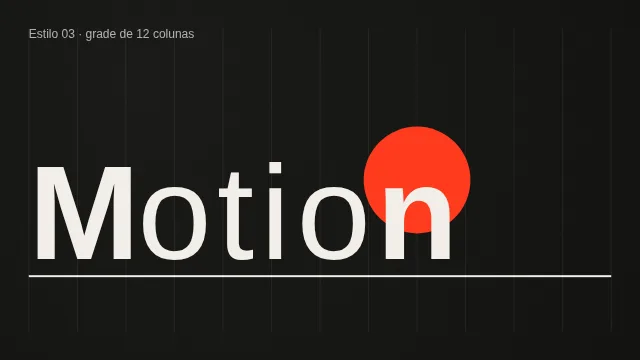
This mistake happened while preparing this course. In an animation with letters, the red disk passed over the word. In motion, it was barely noticeable. In the 50% frame, it was obvious.

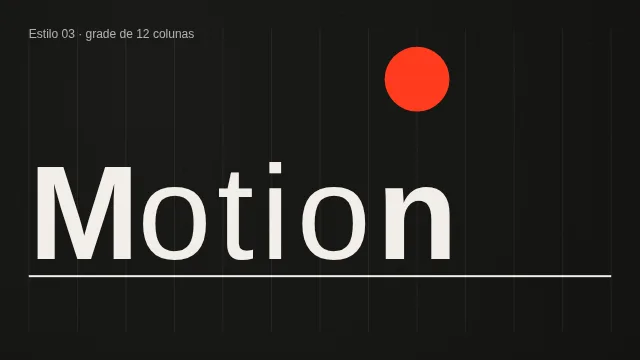
Before50% frame: a red disk covers part of the word Motion.

The disk covers the letters "ion".

AfterCorrected 50% frame: the red disk is in the top band, and the full word Motion is visible.

The disk moves only along the top strip.

Net gain: one correction request, one frame checked again.

A real estate agent checked the agency’s opening animation the same way. In the 25% frame, the phone appeared for only half a second. The agent asked for it to stay on screen longer.

3Ten mistakes that make it look amateurish

Look at each frame for these ten things. Over time, you’ll spot them all at a glance.

Check list
1 Cut-off letter (check g, j, p, q, y)
2 A word by itself on a line
3 Drawing too small, with too much empty background
4 Plain, single-color background with no light or shadow
5 Constant-speed motion
6 Jump when the loop starts over
7 Text disappears before you have time to read it
8 Logo drawn from memory
9 Busy background competing for attention
10 No texture: looks computer-made
The complete list, ready to paste at the end of any request, is in the course request library.
Want to know why the animation always repeats the same way?

The request says to draw everything "from a function of time." At the same moment, you get the same frame. That's why the preview strip shows exactly what the client will see. If the texture were chosen at random each time, the previewed frame would be different from the published one.

4Ask for the correction with three details

"It looks strange" makes the AI guess. Say which frame, what's wrong, and how it should look. Then ask for the strip again so you can check the correction.

Vague

"I didn't like the middle. Fix it."

The AI changes things that were already good.

Specific

"In the 50% frame, the tail covers the price. The full price should be visible from 40% to 70%. Show the strip again."

Changes only what needed fixing.

Stuck here? That's normalDon't know what to call the problem? Write what you see: "in the 75% frame, the bottom of the letter looks cut off." The AI understands the description.

Practice now 0/3

Check your animation and fix one problem

You're done when the corrected strip no longer shows the problem you found. On a computer, about 8 minutes.

Didn't do lessons 1 and 2? First, send the finished request from lesson 1. If no problems show up, great: check item 7 again. It's the most common one.

Below the animation, show a strip with five still frames: 0%, 25%, 50%, 75%, and 100%. Write the percentage below each one.

(after looking at the strip)
In the <50%> frame, <what's wrong>. It should look <how it should look>. Fix only that and show the strip again.
See a correction written by a proofreader

"In the 25% frame, the phone appears for less than a second. It should stay on screen from 20% to 60%. Fix only that and show the strip again."

You checked an animation the way you review work before handing it to a client.

Lesson cheat sheet

Check before publishing

  1. Five-frame strip0%, 25%, 50%, 75%, and 100%, still.
  2. Ten problemscut-off letters, fast text, a jump in the loop, and the other seven.
  3. Specific correctionwhich frame, what's wrong, and how it should look.

Your next step

You already know how to find and fix a problem in an animation.

Save the five-frame strip phrase with your RISE template. Use them together from now on.

In the next lesson: take an existing slide, or your page, and make it move using the brand's exact colors.

Lesson 3 · Motion RISE v6 · INEMA.CLUB PRO

Lesson 4 of 10

The slide and page that come to life

A real estate agent presents to a couple of clients; on the wall screen, a slide shows a line of light crossing the frame.

You can turn a slide you already have into a 10-second loop using your exact brand colors.

You already have slides and a presentation page. Recreating everything as an animation sounds like weeks of work. It isn’t: the existing slide becomes the request’s reference.

In 1 minute

  1. Take a screenshot of the slide and attach it to the request: that’s the R.
  2. For the exact colors, ask AI to read your page and list the codes.
  3. On the page, the text stays as text; only the decoration becomes animated.

1The slide you already have is the reference

Open the slide and take a screenshot. On Windows, press Windows + Shift + S and select. On Mac, Command + Shift + 4. Then drag the image into the message box.

A real estate agent had a slide with the three steps of buying a home: visit, offer, and deed. They attached the screenshot and asked for a beam of light to travel along the steps.

AI chat · Opus 5.5

You[screenshot of the slide attached] R: Here’s my slide (screenshot attached). Keep the same layout and text. I: A 10-second loop: a beam of light travels along the timeline and lights up the three steps. S: The slide’s own colors, with a single highlight. Slow, smooth movement. E: (the usual line)

AII kept the titles Visit, Offer, and Deed from your slide in the same positions. The beam lights up one step every three seconds, then returns to the beginning.

AI didn’t invent a step: it used the text from the screenshot.

Still slideA slide titled From request to delivery, with a line of three unlit steps.
Animation frameThe same slide midway through the animation: an orange beam has traveled along the line, and all three steps are lit.
The same slide: same text and layout, now with the beam lighting up each step.

2The exact colors come from your page

Every webpage stores its colors as a color code. With it, the animation’s green matches the site’s green.

You don’t need to search for them. Ask AI to open the page and list what it finds.

A baker asked AI to do this for her ordering page. She got the list and pasted it into the R for her next requests.

AI chat · Opus 5.5

YouOpen <minhapagina.com.br>, read the page’s code, and give me a list with: brand name, logo address, 2 to 4 main colors with their codes, and the fonts for the headings and text. Don’t make anything up: include only what’s on the page.

AIName: [brand name] Logo: [image address] Colors: [code 1] background, [code 2] headings, [code 3] buttons Fonts: [heading font], [text font]

A short list you can save and paste into the R for every request.

Stuck here? That's normalDon’t have your own page, or can’t AI open it? Take a screenshot of your social media profile or one of your materials and write "read the colors in this screenshot." The code may be approximate; check it against the site.

3If you have a page, the text stays as text

The animation can also go at the top of your page. One rule prevents headaches: the title, sentence, and button stay as real text. Only the decoration becomes animated.

Designed title

The title is part of the animation.

You can’t copy it, it looks blurry on some screens, and people searching online can’t find that phrase.

Title as text

The title is text on top; the animation stays behind it.

Sharp on any screen, found by search, easy to change.

At the top of the order page, the baker asked for sprinkles that fall slowly behind the title "Orders open." The title stayed as text, and she can change the phrase whenever she wants.

Practice now 0/3

Add motion to one of your slides

You’re done when your slide is playing in a loop, with your text and colors. On a computer, about 10 minutes.

The original slide doesn’t change: you only send a copy as an image. Don’t have a slide ready? Use a photo of your own poster or printed page.

R: Here is my slide (screenshot attached). Keep the same layout and the same text. Colors: <paste the color list, if you have one>.
I: A 10-second loop that explains the slide’s idea: <what happens — e.g., a beam of light travels along the line and lights up the three steps>.
S: The slide’s own colors, with a single highlight. Slow, gentle motion; the last frame is the same as the first. 1920x1080.
E: Draw every frame in code from a single render(t) function. Add real texture so it looks handmade. Before you finish, check the frames at 0%, 25%, 50%, 75%, and 100%, and fix anything that’s wrong.
See the I line written by a baker

"I: A 10-second loop: the slide’s four flavors appear one at a time, as if being served, then leave together."

You turned material you already had into an animation without starting from scratch.

Lesson cheat sheet

Bring what you already have to life

  1. A screenshot is a referencethe attached slide becomes the R in the request.
  2. Color codeask for the colors read from your page and reuse them.
  3. Text stays texton the page, only the decoration becomes animation.

Your next step

You already know how to animate one of your slides with the right colors.

Ask for your page’s color list today and save it with your RISE template.

Next lesson: the format you see most on your phone. A video of you talking, with animation on top and captions that light up word by word.

Lesson 4 · Motion RISE v6 · INEMA.CLUB PRO

Lesson 5 of 10

Reel with captions that light up

A pastry chef films herself decorating a cake, with her phone on a tripod and a ring light; another phone on the table shows a vertical video with a colorful shape in the top half.

You can request a reel with animation on top, your video underneath, and captions that light up word by word, then download the result to post.

Videos of people talking hold attention better when something on screen reinforces what they’re saying. Putting this together in an editor takes an afternoon. With one request, the animation and captions are made together.

In 1 minute

  1. The vertical screen is split: animation on top, you underneath.
  2. The captions show up to three words, and the spoken word lights up.
  3. Ask for two buttons on the page: one to choose your video and another to download the finished reel.

1The screen split into two halves

On your phone, the video is vertical. The bottom half shows you speaking. The top half shows an animation that illustrates what you’re saying.

A baker recorded ten seconds saying that party orders need to be placed seven days in advance. Above, a calendar flips through the days until it marks day 7. The example below is running.

A real reel. Tap choose video to see one of your videos in the bottom half. Nothing is sent: the video stays on your device.

2Word-by-word captions

The captions show up to three words at a time. The word being spoken lights up in a highlight color. To do this, the AI needs the timing for each word.

The simplest way: paste the text you said and give the video’s duration. The AI divides the time among the words.

AI chat · Opus 5.5

YouThe video is 7 seconds long. I say: "Party order? Place it seven days in advance."

AII divided the sentence into three parts of up to three words and split the 7 seconds based on the length of each word. If it’s early or late, tell me which word.

No file needed: the text and duration are enough to get started.

Want more precise captions?

Video editing apps on your phone that create automatic captions usually export a file ending in .srt. It’s just text, with the timing for each sentence. Open it, copy everything, and paste it into the conversation along with your request.

Stuck here? That's normalDid the caption appear too early? Write "the word 'seven' lights up too early; delay it by half a second". Check the five-frame strip (lesson 3).

3The first version is crowded

A candid note: in tests of this method, the first reel came out too busy. Too many things appeared and disappeared, and one scribbly letter was hard to read. One sentence fixes it.

First version

Icons, arrows, sparkles, and three sentences at once in the top half. Decorative lettering in the caption.

After one sentence

"Leave just one visual idea in the top half and use a bold, plain font for the caption."

One calendar, one sentence, readable captions.

A real estate agent made a reel for an apartment. In the first version, the floor plan, price, and neighborhood competed for space in the top half. They asked for just one idea: the floor plan drawing itself.

4From chat to post

The animation starts as a page. To post it, you need a video file. Ask for a button that records the ten seconds and saves the file.

AI chat · Opus 5.5

YouAdd a "download video" button that records the 10 seconds in 1080x1920 and saves the file.

AII added the button below the animation. When you tap it, it records the 10 seconds and saves the video file on your device.

The example in step 1 has this button. In our tests, it saved a 10-second vertical video.

Two ways around it, if needed. If the button won’t download the file in the conversation, open the animation panel, download the page, and open it in your browser. If the social media app rejects the file, use your phone’s screen recorder while the animation plays.

Practice now 0/3

Create and download your reel

Ready when the reel file is saved on your device. On a computer, about 10 minutes.

Nothing is published: you decide later whether to post it. No video recorded? Record 7 seconds now on your phone, saying just one sentence.

R: My video is <7> seconds long. I say: "<the exact sentence you said>". Colors: <your colors>.
I: A vertical reel. Top half: an animation for that sentence. Bottom half: my video, with a "choose video" button so I can select the file on my device.
S: Just one visual idea in the top half: <e.g., a calendar flips through the pages until day 7>. Captions: no more than 3 words; the spoken word lights up. Plain font. 1080x1920. Add a "download video" button that records everything and saves the file.
E: Draw every frame in code from a single render(t) function. Add real texture to make it look handmade. Before you finish, check the frames at 0%, 25%, 50%, 75%, and 100%, and fix anything that's wrong.
See the I and S lines written by a proofreader

I: A vertical reel. Top half: an animation for "three bedrooms, ten minutes from the subway". Bottom half: my video, with the "choose video" button.
S: Just one idea: the apartment floor plan draws itself, and the three bedrooms light up. Caption and buttons as in the template.

You made a reel with animation and synchronized captions, and have the file ready to post.

Lesson cheat sheet

Reel in two halves

  1. Top and bottomthe idea animated on top, you speaking below.
  2. Live captionup to 3 words; the spoken word lights up. Text and duration are all you need.
  3. Two buttonschoose your video and download the finished reel.

Your next step

You now know how to request a reel with animation and captions, and download the file.

Write down three sentences you repeat to clients every week. Each one can become a reel using this same template.

Next lesson: the reel looked good vertically, but you also want it horizontal and square. Without cropping.

Lesson 5 · Motion RISE v6 · INEMA.CLUB PRO

Lesson 6 of 10

One scene, three formats

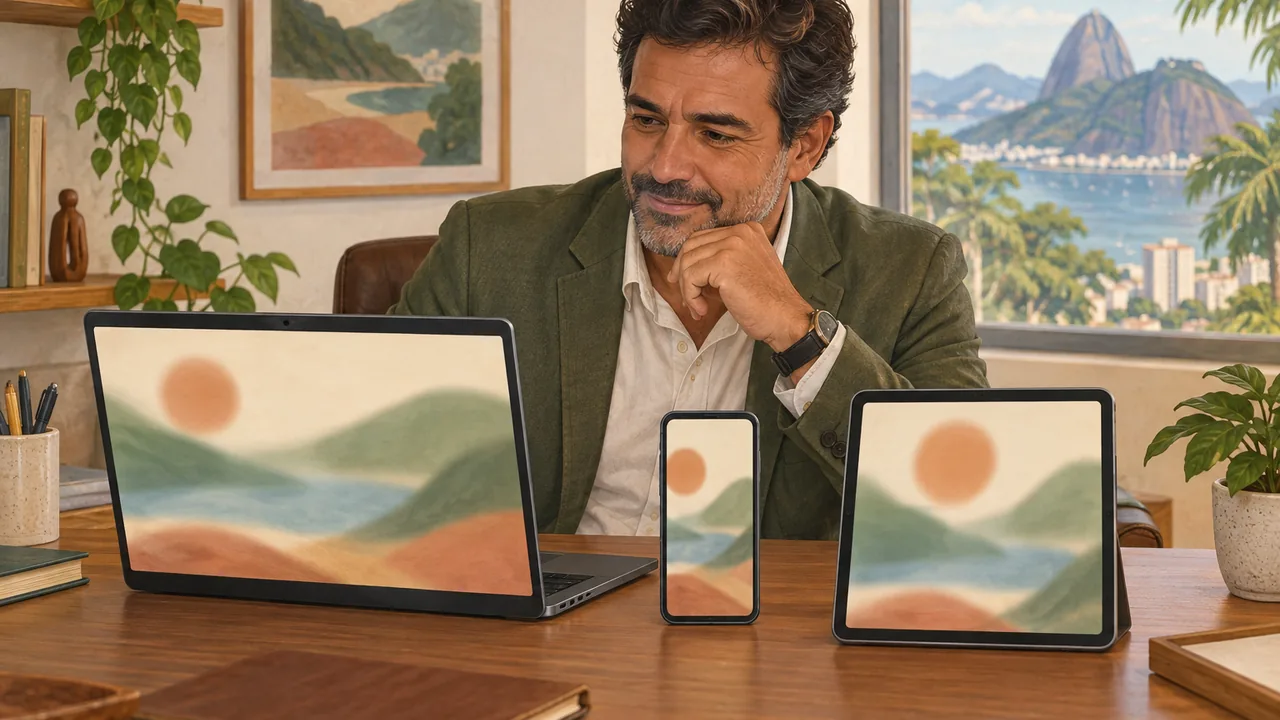
A real estate agent looks at a laptop, an upright phone, and a square tablet on the table, all showing the same animated landscape.

You can request the same animation in horizontal, vertical, and square formats, with the composition rearranged for each one, without anything being cut off.

Each place calls for a different format. Horizontal for the big screen, vertical for the phone, square for the feed. Cropping cuts off the title; making it three times takes all day.

In 1 minute

  1. Cropping cuts off the edges. Rearranging rebuilds the composition for the new format.
  2. Ask for one scene that rearranges itself into 16:9, 9:16, and 1:1.
  3. Put the word that changes on a separate line at the top of the recipe, so you can change it later without starting over.

1Cropping isn't adapting

The three formats are named by their proportions. 16:9, 9:16, and 1:1. When you only crop, whatever was at the edges disappears.

A real estate agent cropped the landscape opening to fit the portrait format. The real estate agency’s name and the last step disappeared. They asked to rearrange it instead of cropping it.

Cropped

The same scene, with the edges cut off.

The title loses letters, and the third step falls outside the frame.

Rearranged

The same idea, rebuilt for the format.

In portrait format, the timeline runs vertically, and everything fits.

2See the same animation in all three formats

The animation from lesson 1 was requested with the ability to rearrange itself in mind. Below, it runs in three sizes at the same time. Notice the timeline: landscape in the wide format, portrait on a phone, and square.

Three formats, one animation. Nothing was cropped: each format has its own composition.

A baker uses the same trick: the seven-day deadline animation is portrait for a phone and square for the feed.

3Keep the changing word at the top

One detail in the request saves a lot of work. Ask for the main word to be on its own line at the top of the recipe. Then, for a new version, you only need to change that word.

AI chat · Opus 5.5

YouR: My narration ends with "With enough coffee, anything is possible." I: A cup whose steam draws three small screens, each with a lively scene, then goes back inside the cup. S: Dark, magazine-style visuals with warm light. 10 seconds, with the last frame matching the first. ONE scene that rearranges itself for 16:9, 9:16, and 1:1, never cropped. Put the word BEBIDA = café on its own line at the top of the recipe so I can change it.

YouNow change BEBIDA to 'tea'.

AIChanged. The cup is now filled with tea, with lighter steam, in all three formats.

The second version took one sentence, not a new request.

Stuck here? That's normalIf one of the formats has something cut off, ask for the five-frame strip for just that format: "show the five frames in 9:16". Fix that one without changing the others.

Practice now 0/3

Create your scene in all three formats

You’re done when all three formats run with everything visible and you’ve changed the word at the top once. About 9 minutes on a computer.

Nothing is published. If one format looks strange, ask to fix just that format.

R: <your closing line, or a screenshot of one of your pieces>.
I: <the scene in one sentence: beginning, one change, and end>.
S: Visuals <background, colors, texture>. Smooth motion, 10 seconds, with the last frame matching the first. ONE scene that rearranges itself for 16:9, 9:16, and 1:1 (never a crop). Show all three together. Put the word <WORD> = <value> on its own line at the top of the recipe so I can change it.
E: Draw every frame in code using a single render(t) function. Add real texture to make it look handmade. Before finishing, check the frames at 0%, 25%, 50%, 75%, and 100% in each format and fix anything that’s wrong.
See the template filled in by a realtor

R: "With the key in hand, everything begins."
I: a door opens, light comes in and draws the floor plan of a house, and the door closes again.
S: like the template, with IMOVEL = casa on a line at the top. Then they changed it to apartment.

You made one design that works for the big screen, your phone, and the feed all at once.

Lesson cheat sheet

One request, three formats

  1. Rearrangenever crop: each format gets its own layout.
  2. 16:9, 9:16, 1:1landscape, portrait, and square, in the same request.
  3. Word at the topa separate line you can change without redoing everything.

Your next step

You now know how to make one design that adapts to every format.

Take the reel from lesson 5 and ask for a square version for the feed.

Next lesson: the design that impresses a client most is their logo in motion. With sound.

Lesson 6 · Motion RISE v6 · INEMA.CLUB PRO

Lesson 7 of 10

The logo in motion, with sound

A pastry chef wearing headphones smiles at a tablet showing an animated logo as she sits on the sofa, with a notebook of sketched shapes on her lap.

You can make a 5-second intro with a real logo moving in a way that fits the brand, with a short sound synced to it.

Nothing gets a brand's attention like its own logo. Opening a presentation with the client's animated logo shows care. Before, this required an animator; now it fits in one request.

In 1 minute

  1. Always use the real logo file. Drawing it from memory gets it wrong.
  2. Ask what movement fits the brand, not which animation works for every brand.
  3. The sound also comes from the request, synced to the movement, starting silent.

1The real file, never from memory

If you ask for "the logo of such-and-such real estate company," the AI draws it from memory. It looks close, but it's wrong. Attach the file. PNG works; the best format is SVG.

A real estate agent was going to present properties to a construction company partner. On its website, he right-clicked the logo › Save image as. On a phone, tap and hold the logo › Save image. He attached the file to the request.

From memory

Request: "animate the logo of construction company X".

Result: different letters, similar color, made-up symbol.

Real file

Request: "animate the attached logo; use the exact shapes and colors".

Result: the identical logo, now in motion.

Stuck here? That's normalIf the website won't let you save the logo, ask the client for the file: "could you send me the logo as an SVG or a PNG with a transparent background?". Every company has one.

2What movement fits the brand?

Using the same animation for every logo makes them all look alike. The right question is: how does this brand move? A brand made of blocks builds itself. A music brand pulses. A sports brand streaks across the screen.

A baker's logo has a cupcake with frosting. She asked for the frosting to drip until it formed the name of her studio.

AI chat · Opus 5.5

YouR: Attached logo (SVG file). Use the exact shapes and colors. I: A 5-second reveal: the cupcake frosting drips slowly and forms the studio name beneath it. S: Movement with the brand's energy: sweet and calm. Write a 3-second sound in code, synced to the movement. It starts silent.

AIDone. The icing drips in 2 seconds, and the name appears letter by letter. A soft bell rings when the name is complete. There’s a button to turn on the sound.

The motion tells you something about the brand, and the sound marks the right moment.

3The sound also comes from the request

The AI writes a short audio logo in the code itself, without downloading music from anywhere. The sound is tied to the motion: it plays when the animation reaches the agreed point.

Always ask for it to start muted, with a button to turn on the sound. Sound that starts on its own can bother people in a quiet place. See an audio logo like this in action and tap turn on sound.

A real audio logo, with an invented logo for the example. The bell rings when the name is complete.
What the AI does

Creates the motion, composes 3 seconds of sound, and syncs them.

What’s yours

Use another company’s logo only with its permission, or in a presentation made for that company.

Practice now 0/3

Animate your logo

You’re done when the 5-second audio logo plays with your logo exactly as it is and the sound plays at the right moment. About 8 minutes on a computer.

Use your own logo for this practice. No logo? Use the first letter of your name in your favorite color.

R: My logo is attached (SVG or PNG). Use the exact shapes and colors; don’t redraw it.
I: A 5-second reveal: <the motion that captures the brand — e.g., icing drips and forms the name>.
S: Motion with the brand’s energy: <calm, cheerful, confident, fast>. Write 3 seconds of sound in code, synced to the motion. It starts muted, with a button to turn on the sound.
E: Draw every frame in code from a single render(t) function. Add real texture so it looks handmade. Before you finish, check the frames at 0%, 25%, 50%, 75%, and 100%, and fix anything that’s wrong.
See line I written by an editor

“I: A 5-second reveal: the real estate company’s symbol door opens, light comes in, and the name appears on the threshold.”

You made a moving audio logo, ready to open a presentation.

Lesson cheat sheet

Animated logo

  1. Real fileattach the SVG or PNG; never ask it to recreate it from memory.
  2. Brand motionblocks come together, music pulses, sports leaves a streak.
  3. Synced sound3 seconds in code, starts muted.

Your next step

You now know how to turn a still logo into an audio logo.

For your next presentation to a client, open with their animated logo, using the file they provide.

Next lesson: you saw a beautiful image and want that style. You’ll learn how to capture the style without copying the image.

Lesson 7 · Motion RISE v6 · INEMA.CLUB PRO

Lesson 8 of 10

Take the style, not the image

A real estate agent chooses from art prints with bold colors and textures pinned to a corkboard, holding one of them.

You can describe the style of a reference image and use that style in a new animation of your own.

You see a beautiful look and think: I want that. Copying the image won’t work because it belongs to someone else and says something different. What you want is its visual language.

In 1 minute

  1. Style is color palette, lettering, texture, composition, and movement.
  2. First, ask for a written description of the style. Only then create the animation.
  3. There are six ready-to-use styles in the course library, each with a complete request.

1Style is the language, not the drawing

A reference image has two layers: what it shows and how it shows it. You take only the second: the colors, lettering, texture, and the way things are arranged in the frame.

A real estate agent found a layered cut-paper poster with shadows on a design inspiration site. She wanted that style to show the view from an apartment.

Copy the image

The same boat, the same sea, the same moon as in the poster.

It doesn’t show the apartment, and the drawing belongs to someone else.

Take the visual language

Layers of paper with shadows, colors that get lighter with distance.

Now showing the buildings and sea as seen from the balcony.

2Write first, then create

The trick that improves the result the most: ask AI to describe the style before drawing. That way, it settles on the palette and lettering without changing them halfway through.

AI chat · Opus 5.5

YouR: This reference image (attached). I: A 10-second explainer: "the sea and city from the balcony". S: Take the style of the reference (palette, lettering, texture, composition), not the image. First describe what it looks like and how it would move; then create it.

AIStyle of the reference: cut-paper layers, irregular edges, soft shadows on each layer, colors that get lighter with distance, one warm accent. Movement: layers moving at different speeds. Now I’ll create the balcony scene in this style.

The description comes before the drawing, and you can correct it if it’s wrong.

A pastry chef used a two-color print as a reference. The first version was almost right. One sentence fixed it: "add print grain and make the two colors slightly misaligned".

Stuck here? That's normalNot every reference comes out perfectly on the first try. If it’s "almost" right, don’t start over: say in one sentence what’s missing, such as "more grain" or "faded colors, like an old film".

3Six ready-to-use styles

The course library has six styles with complete requests: exact colors, lettering, timing, and rules. Replace the example word with your own. Below, style 03 in action.

Style 03, Swiss poster: one large word, a single color on the circle, letters that thicken and thin in a wave.
Request library · styles
styles
01 · Editorial graphic (ivory paper)
02 · Documentary chalkboard
03 · Swiss poster
04 · Ink spreading on paper
05 · Layered cut paper
06 · Two-color printing
Each style has a look, movement, five rules, and the full request. All are in the course request library: copy one and change only the example word.

Practice now 0/3

Use the style of a reference

You’re done when the new animation has the style of the reference, but your subject. On a computer, about 10 minutes.

The reference is only inspiration for the visual language; the design will be new. Don’t have a reference handy? Use one of the six styles in the library.

R: This reference image (attached).
I: A 10-second explainer: "<your subject in one sentence>".
S: Use the style of the reference (palette, lettering, texture, composition), not the image. First describe what it looks like and how it would move; then build it.
E: Draw every frame in code from a single render(t) function. Add real texture so it looks handmade. Before you finish, check the frames at 0%, 25%, 50%, 75%, and 100%, and fix anything that’s wrong.
See the subject written by a pastry chef

"I: A 10-second explainer: from flour to finished cake in three steps." Reference: a poster printed in pink and blue.

You brought the style of an image into your own piece without copying the design.

Lesson cheat sheet

Borrowed style

  1. Visual languagepalette, lettering, texture, composition, and movement.
  2. Describe it firstthe style description comes before the design.
  3. Six ready-made stylesin the library, with the full request.

Your next step

You now know how to take the style of an image and use it in your own piece.

Choose the style that best fits your brand and save its request with your RISE template.

Next lesson: one piece turned out great. What if you need thirty just like it, one for each product or property?

Lesson 8 · Motion RISE v6 · INEMA.CLUB PRO

Lesson 9 of 10

Test with five, then scale up

A pastry chef at a large table looks at a grid of many colorful thumbnails on a laptop, with a printed checklist of five items marked beside it.

You can plan a batch production: one template, one list, and a test with five pieces before making them all.

One piece turned out great. Now you need thirty: one for each product, property, or client. Making them one by one takes all week. Making all thirty at once without testing could repeat the same mistake thirty times.

In 1 minute

  1. Batch production has three parts: a list, a template, and a folder for the results.
  2. Test with five, check them, and only then make the rest.
  3. For dozens of pieces, a coding agent on your computer can do the heavy work.

1One list, one template, one folder

The animated template is the piece you’ve already approved, with the parts that change kept separate. The list says what goes into each piece. The folder holds the finished videos.

A real estate agent has thirty properties in their portfolio. They want an 8-second intro video for each one, with the neighborhood, price, and a photo of the building’s front.

My files
1 imoveis.txt (text list: neighborhood, price, photo)
2 molde-vinheta.html (the approved animation)
3 vinhetas-prontas
01-centro.mp4
02-jardim-das-flores.mp4
  1. 1The list: one line for each item, with what changes.
  2. 2The template: the approved animation, with the changing parts at the top (lesson 6).
  3. 3The folder: one video for each line in the list.

2Five first, thirty later

The golden rule for any AI batch job: test, check, scale up. Five items reveal problems that only show up with real data. A long name that doesn’t fit. A light logo on a light background.

Straight to all thirty

Thirty intro videos are ready. In eight, the neighborhood name was cut off.

Redo the eight, and check all thirty again.

Five, then thirty

In the five test videos, one long neighborhood name was cut off. Fixed in the template.

All thirty come out right in one go.

Net gain: one error found in five items, and not repeated across thirty.

A baker did the same with twelve flavors. In the test of five, the flavor "dulce de leche with walnuts" didn’t fit. She asked for smaller text for long names before making all twelve.

3Who does the heavy lifting

In AI chat, you can make five or ten items. For dozens of videos, there’s a coding agent, such as Claude Code with Opus 5.5. It reads the list, fills in the template, records each video, and puts together a collage: one video showing all the intro videos side by side in a grid.

In AI chat, the process is the same on a smaller scale: "make the first five, one at a time, each with the download video button."

Coding agent · Opus 5.5

YouR: imoveis.txt has 30 properties: neighborhood, price, and photo. I: An 8-second template, "{Bairro}, starting at {Preço}", that looks good for any property. S: Use my colors, with automatic contrast for light and dark photos. Save each one as a 1080x1080 video in the vinhetas-prontas folder, then make a collage with them all. Test 5 first. E: check the five frames of each intro video and make corrections before continuing.

AII made the first 5 and stopped so you can check them. In property 3, the neighborhood name is long and touched the edge; I made the text smaller for long names. Can I continue with the other 25?

The agent stops after the test and waits for you to say yes. That’s the "five first" rule in action.

Stuck here? That's normalThe coding agent takes a little preparation on your computer, and you don’t need it to get something out of this lesson. The rule of testing with five works the same in AI chat: ask for five items, check them, then ask for the rest.

Practice now 0/3

Plan a batch of pieces

You’re ready when you’ve answered the three questions and checked the answer key. About 7 minutes; write your answers on paper or in your notes app.

This is only planning: nothing is made or published. There’s no perfect answer; the answer key shows one safe approach.

The situation: a baker wants a 6-second video for each of the 40 treats on her party menu, with the name, price per hundred, and photo. She already has an approved animation of one treat. The names range from "brigadeiro" to "dulce de leche and toasted coconut wedding cookie". Some photos have white backgrounds, others dark backgrounds.

View answer key

1. Each line: name, price per hundred, and photo. At the top of the template: NAME, PRICE, and PHOTO, set up separately so you can swap them.
2. The difficult cases, not the easy ones: the shortest name, the longest name, a photo with a white background, one with a dark background, and a common treat.
3. The five-frame sequence for each test: the full name with nothing cut off, the price readable long enough, good contrast on both types of background, and a loop with no jump.

You planned a batch of forty pieces without repeating the same mistake forty times.

Lesson cheat sheet

Batch production

  1. List, template, folderwhat changes, the approved piece, and where to save it.
  2. Test with the hard casesfive pieces with the most challenging cases.
  3. Coding agentfor dozens; in chat, five at a time.

Your next step

You already know how to plan a batch that gets it right the first time.

Write the list for a real batch of your own, with one line per piece. Mark the five most difficult cases.

In the final lesson: you’ll divide the work into roles, like a small team, and use the method for something other than animation.

Lesson 9 · Motion RISE v6 · INEMA.CLUB PRO

Lesson 10 of 10

From request to small team

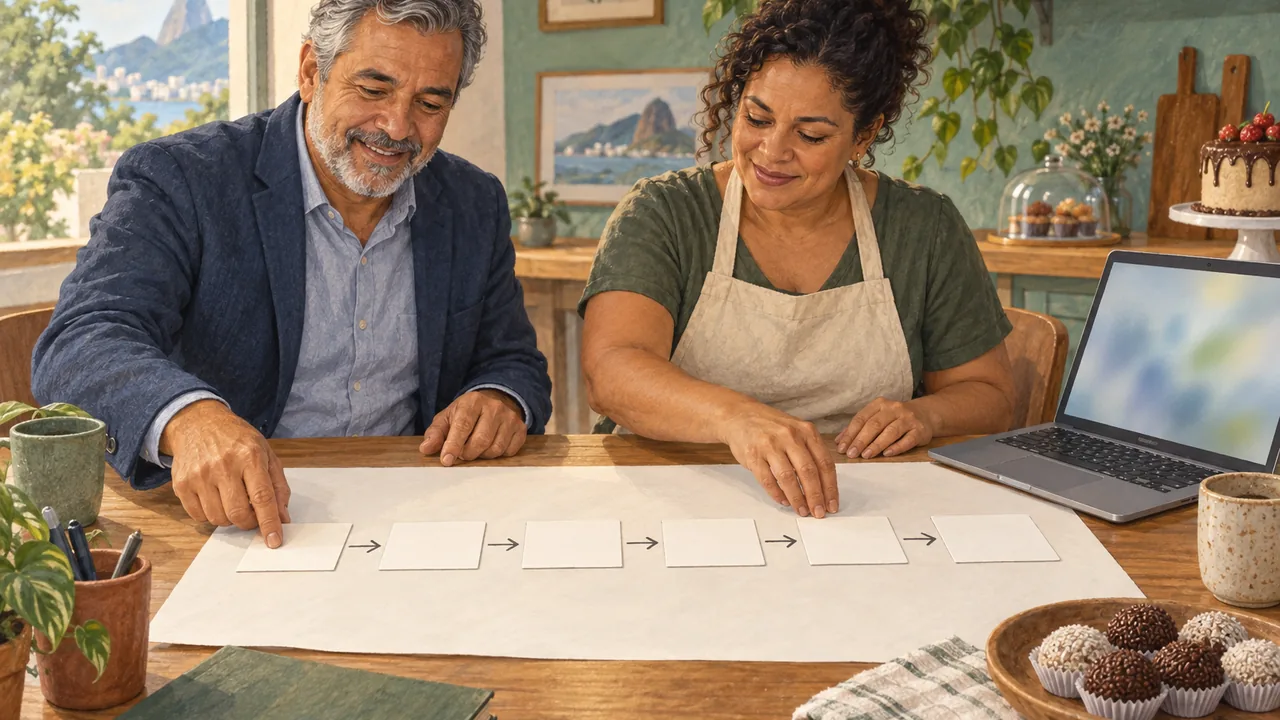
A real estate agent and a pastry chef at a meeting table arrange six cards in sequence, connected by arrows drawn on a large sheet of paper.

You can divide a piece into six roles, from director to reviewer, and use the same method for work that isn’t animation.

One request is enough for a simple piece. With a larger piece, everything gets mixed together: the message, colors, movement, and review. Real teams separate the work into roles.

In 1 minute

  1. Six roles: director, art director, animator, programmer, reviewer, and adjuster.
  2. The value is in the cycle: make, look, evaluate, correct, and make it again.
  3. The same template works for a report, page, ad, and lesson.

1Six roles, one piece

You can ask for each role in a separate conversation, or have the same AI take on one role at a time. What matters is that each one delivers something to the next.

The team for the piece
1 Director: message, idea, duration
2 Art director: colors, type, texture, composition
3 Animator: what moves, in what order, and at what pace
4 Programmer (the AI): writes the drawing instructions
5 Reviewer: checks the five frames and the ten flaws
6 Fixer: gets the list of flaws and makes adjustments
You are the director and provide the reference. Roles 2 and 3 write the S. Role 4 is always the AI. You or the AI can be the reviewer and fixer: that’s the E.

A baker made a launch presentation this way. The director chose the phrase. The art director used the construction company’s colors. The reviewer found two text sections that were too fast.

2The value is in the review cycle

Generating is the easy part. What makes the piece good is going back: look at the result, compare it with what you agreed on, and make corrections. Repeat until it passes.

Fazer Olhar Avaliar Corrigir
Make it, look at the five frames, check them against the ten flaws, and make corrections. Then do it again until it passes.

A baker started adding this request at the end: "if any flaws show up, correct them and check again before showing me". The pieces started arriving ready.

Stuck here? That's normalSix roles may seem like a lot for a small piece. You don’t have to use them: for a simple post, the RISE request does it all. Use the roles when the piece is big or important.

3The same template beyond animation

RISE teaches something that works for any request: say where the material comes from, what you want, the rules, and how to check it. A good request also explains when the work is ready.

AI chat · Opus 5.5

YouR: The monthly sales spreadsheet is pasted below. I: A one-page summary for my business partner: what grew, what fell, and one decision for next month. S: Simple language, three headings, no more than 250 words. E: Before handing it over, check that every number in the summary is in the spreadsheet, and correct anything that isn’t.

AIReady. I checked the summary numbers against the spreadsheet: they’re all there. The text has three headings and 230 words.

The same four parts, now in a report. The review is included.

Practice now 0/3

Build the team for your next piece

You’re done when you have all six role cards written for a real piece and a RISE request for work that isn’t animation. About 9 minutes, on paper or in your notes app.

This is planning on paper: nothing is sent. If you leave a card blank, that’s okay; it shows what you haven’t decided yet.

See a baker’s six role cards

Director: "10-second Christmas menu, focus on the panettone". Art: cream, dark red, serif font. Animator: the sweets appear one at a time, with the panettone last. Programmer: the AI. Reviewer: five frames, price easy to read. Fixer: the AI, with the reviewer’s list.

You’re already organizing creative work the way a small team would.

Lesson cheat sheet

A method for any piece

  1. Six rolesdirection, art, motion, recipe, review, correction.
  2. Cyclemake, look, evaluate, correct, until it passes.
  3. Outside the animationmaterial, goal, rules, and how to check.

Your next step

You already know how to request, check, and scale animations, and take the method to other work.

This week, publish a piece you made in the course: the slide, the reel, or your logo animation. The “download video” button in lesson 5 works for any of them.

The complete requests from all ten lessons and the six styles are still in the course request library, ready to copy whenever you need them.

Lesson 10 · Motion RISE v6 · INEMA.CLUB PRO