Open kit · Docs, Slides, Design, Dashboards, and Motion

Your whole office inside Claude

Documents, presentations, and designs that look like your company, created in a conversation — three of them even on the free plan. Set it up once in 4 steps and stop starting from scratch.

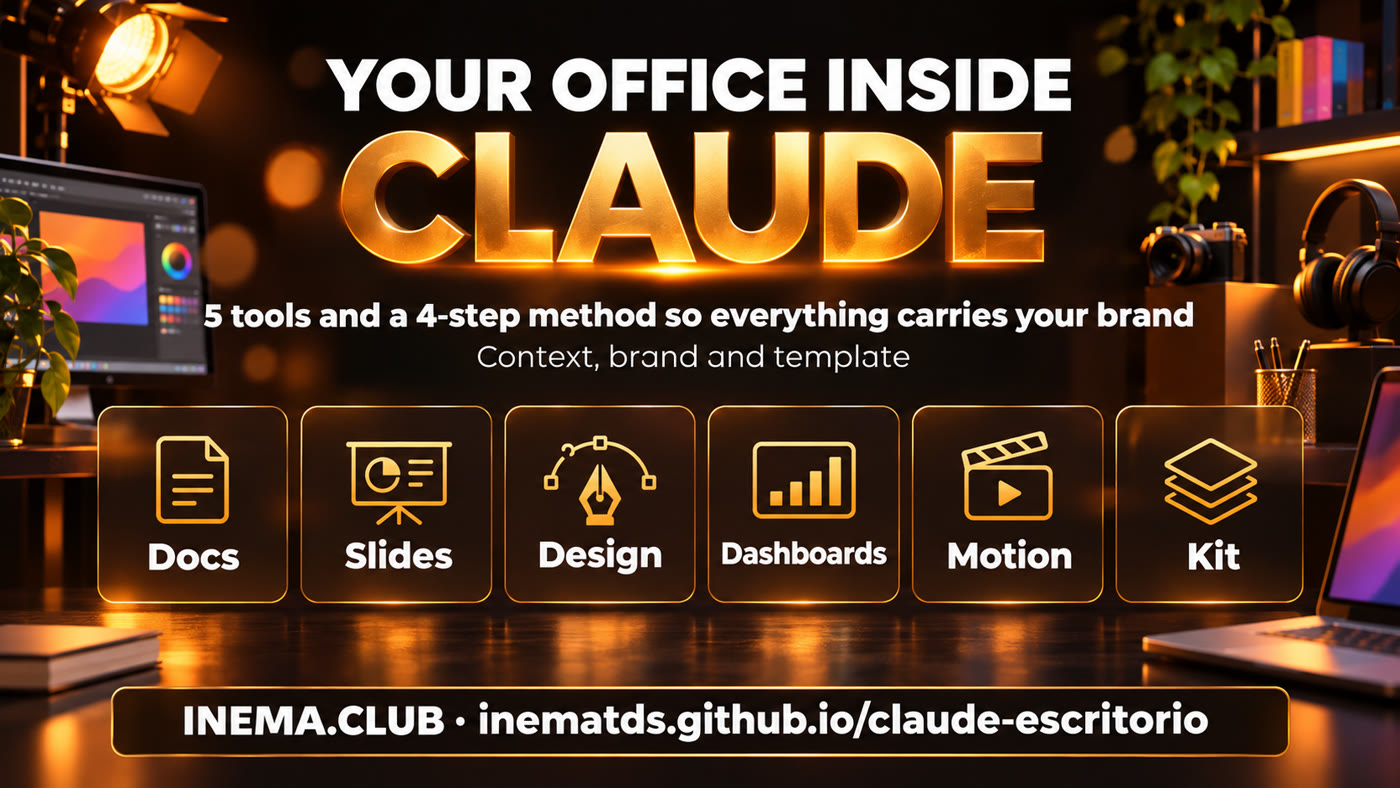
Banner: your office in Claude — docs, slides, and design with your brand
In short

This is a free kit for using Claude as your office: write documents, build presentations, create designs, and, on some plans, data dashboards and animations. It is for people working solo or in small teams who are tired of explaining their brand and business every time. The kit includes a “who I am” template to paste into a Claude Project, ready-to-use prompts for each tool, and a checklist of what each plan includes. All you need is a Claude account (the free plan already works for Docs, Slides, and Design) and a browser.

What it is

Five tools in one tab

Artifacts is what Claude calls the things you create with it and save: documents, presentations, designs, dashboards. They live in the Artifacts tab (in the left menu on claude.ai, or directly at claude.ai/artifacts). Choose a template there, or just ask in the conversation. Your creations are private until you share them, and can be exported as PowerPoint, Google Slides, PDF, MP4, or HTML.

The five tools: Docs, Slides, Design, Dashboards, Motion, and the kit

🧠 Context first

A good tool without context produces generic work. The kit starts with a Project that tells Claude who you are, what you sell, and how you communicate.

🎨 Your brand everywhere

A design system — the “brand guide” Claude saves and uses automatically: colors, fonts, logo, and style — created from a PDF, screenshots of your website, or your logo. One source is enough to get started; from then on, everything looks like your brand.

♻️ Create once, reuse

Your first proposal or report that turns out well becomes a template. The next ones build on it, with the same structure and visual style.

The 5 tools

What each one does (and when to use it)

Official names: Claude Docs, Claude Slides, Claude Design, Claude Dashboards, and Claude Motion. Verified on Anthropic’s pages on Nov 4, 2026.

1

Docs

Documents you create alongside Claude and your team, in real time.

  • It drafts sections, asks questions, and comments on your choices.
  • It pulls charts from spreadsheets and apps connected to Claude (“connectors”) and updates them when you ask.
  • Use it for: a handbook, policy, weekly plan, or report.
2

Slides

Presentations built from notes, reports, or what is already in the conversation.

  • Edit directly on a slide; present without leaving Claude.
  • Export to PowerPoint, editable Google Slides, and PDF.
  • Use it for: a proposal after a meeting or a monthly update.
3

Design

Posts, flyers, one-pagers, sales pages, and prototypes using your design system.

  • Create a design system from a PDF, screenshots, a logo, or code.
  • Even create a screen prototype or sales page.
  • Use it for: a weekly post, invitation, or offer page.
4

Dashboards (beta = test version)

Ask a question in plain English and get an updating dashboard connected to your database or sales system (CRM, such as Salesforce).

  • Click a number to see the query — the “calculation” Claude used to arrive at it.
  • Each chart shows when it was last updated.
  • Paid plans only.
5

Motion (beta = test version)

A short animation built with code that plays like a video and can be downloaded as an MP4.

  • No video generator: no filming or AI-generated people.
  • Change a word or number and everything else stays the same.
  • Team and Enterprise plans only.
+

What they all have in common

Private by default; invite others to “view” or “edit.” Edit on mobile. Anthropic says more than 45 million docs, decks, and designs have already been made in Claude.

How it works

The 4-step method

Set it up once, use it every day. Steps 1 and 2 take an afternoon; repeat steps 3 and 4 every week.

1 · Context (Project)→ 2 · Brand (design system)→ 3 · First template→ 4 · Reuse
Before you start

What you need

Nothing to install. Everything happens in your browser or in the Claude app.

A Claude account

The free plan already includes Docs, Slides, and Design. Dashboards requires a paid plan; Motion requires Team or Enterprise. See the plan comparison.

A brand reference

A PDF or presentation you like, screenshots of your website, or your logo. One source is enough to get started.

Something you do repeatedly

A proposal, report, or post you create every week. That will become your first template.

How-to guide · step by step

Set up your office

Each step has a ready-to-use file in the kit. Click the filename, use the Copy raw file button (two-page icon) on GitHub, replace the text in [square brackets], and paste it into Claude.

1

Context: tell Claude who you are

On claude.ai, open Projects (left menu) › New project. Inside the Project, there is an Instructions field: paste the completed template from kit/contexto/instrucoes-do-projeto.md there. Don’t want to fill it in yourself? Use the prompt that asks Claude to interview you. To see a completed example, open the completed example (a consulting practice for clinics). Also upload 2 or 3 reference files (a sales presentation, a successful proposal).

# kit/prompts/01-entrevista-contexto.md (excerpt)
I want to create instructions for a Project in Claude so you can work as
my office assistant. Interview me.
- Ask one short question at a time, and wait for my answer.
- Cover: who I am; what I offer; my clients and their objections; real proof;
  how I communicate; my brand.
- Don’t make anything up. Leave out anything I don’t know.
2

Brand: create your design system

In a chat inside your Project, attach your brand PDF, website screenshots, or logo and ask for a design system. Claude extracts colors, fonts, logo usage, and style. It’s an approximation: check the colors once using the kit/design-system-modelo.md worksheet. Later, to view or edit it: in Claude Settings, look for Design systems (in the English app, go to Settings › Capabilities).

# kit/prompts/02-design-system.md (excerpt)
I attached my brand PDF. Create a design system for my brand.
1. Extract: palette (code and usage for each color), fonts, logo on light and dark backgrounds,
   spacing, corners, icon and photo styles.
2. Show me a sample: presentation cover, slide, square post, button.
3. List what you could NOT find in the files and ask me before making anything up.
3

First template: the thing you make most often

Choose a tool based on the deliverable. The biggest time-saver: from meeting to proposal. Paste your meeting notes, ask Claude to research the client’s website, and create a proposal with the client’s logo on the cover — not yours.

# kit/prompts/03-slides-proposta.md (excerpt)
Create a slide proposal for [CLIENT], using my design system.
1. First, show me the outline and wait for my OK.
2. Research the public website at [client.com] and list 3 questions that still need answers.
3. Put the CLIENT’S name and logo on the cover.
4. Problem → what changes → how we do it → timeline → investment → next step.
5. No more than 10 slides, with speaker notes. Don’t make up numbers.

Other deliverables: a document with a colleague’s Claude (04-docs-colega.md), a post or sales page (05-design-peca.md), a metrics dashboard (06-dashboard-numeros.md), and an animation (07-motion-explicativo.md).

4

Reuse: turn what works into a template

Once a deliverable is approved, ask Claude to describe its structure and save it in the Project as “Proposal template,” for example (in the Project, add a file with that text; if it is short, paste it into the Instructions). From then on, just ask for “another one like the template” and change what’s new. Share it with your team, with “view” or “edit” access.

# kit/prompts/08-reusar-modelo.md (excerpt)
New proposal for [client], just like the “Proposal template.”
What’s changing: [notes from the new meeting].
Show me only what changed from the template before building the whole thing.
Metrics dashboard

Before Dashboards: choose 1 outcome metric

A good dashboard answers one question: “Am I getting there?” Separate the number you want to reach from the numbers you can influence today.

BusinessOutcome metric (the end result)Driver metrics (what you can influence)
ClinicAppointments completed this monthNew appointments scheduled · no-shows confirmed the day before · follow-up visits booked
Consulting practiceRevenue this monthMeetings held · proposals sent · proposals answered
Online storePaid ordersVisits · open carts · recovered carts
Video channelSubscribersVideos published per week · views per video

Illustrative examples. Before sharing the dashboard, click each number and check the query and its last updated date: Anthropic has not published query accuracy rates.

Plans

What your plan includes

Not sure which plan you have? Settings › Plan. Verified on Nov 4, 2026, at claude.com/features/artifacts and in the Claude Help Center. Plans change: check claude.com/pricing.

ToolFreePro / Max / UltraTeamEnterprise
Docs✅ yes✅ yes✅ yes✅ yes
Slides✅ yes✅ yes✅ yes✅ yes
Design + design system✅ yes✅ yes✅ yes✅ yes
Dashboards❌ no🧪 beta🧪 beta🧪 beta (owner enables it)
Motion❌ no❌ no🧪 beta🧪 beta (owner enables it)

The separate claude.ai/design site shuts down on Dec 14, 2026. If you have a design system there, migrate it from the Artifacts page (“Migrate team design systems”).

Common mistakes

What makes the output generic (and how to avoid it)

Asking without context

“Make a slide about my service” without a Project gets you a slide that could belong to any company. Do step 1 first.

Letting Claude make things up

Fake numbers, testimonials, or clients destroy trust. The instruction “don’t make things up; ask me” is already in the template.

Your logo on the client’s proposal

For client materials, the cover belongs to them: their name and logo. Put yours at the end.

Sharing an unchecked dashboard

Dashboards shows the query behind each number. Click and check before sending it to anyone.

Starting from scratch every time

Turn the approved deliverable into a template (step 4). That’s where the time savings come from.

Sharing too widely

Everything starts private. Invite only the people who need access, with “view” or “edit” permissions.

The kit

Ready-to-copy files

Click a filename to open it on GitHub. Use the Copy raw file button (two-page icon in the upper-right corner above the text), then paste into Claude. You don’t need a GitHub account.

FilePurpose
kit/contexto/instrucoes-do-projeto.md“Who I am” template for Project Instructions (step 1)
kit/contexto/exemplo/instrucoes-clinica.mdThe same template filled out with a fictional example
kit/prompts/01-entrevista-contexto.mdClaude interviews you and writes the context
kit/prompts/02-design-system.mdTurn your brand into a design system (step 2)
kit/design-system-modelo.mdWorksheet for checking colors, fonts, and logo
kit/prompts/03-slides-proposta.mdFrom meeting to slide proposal
kit/prompts/04-docs-colega.mdA document with a colleague’s Claude + weekly routine
kit/prompts/05-design-peca.mdA post, flyer, or sales page with your brand
kit/prompts/06-dashboard-numeros.mdChoose metrics and build the dashboard
kit/prompts/07-motion-explicativo.mdTurn a report into a 30-second animation
kit/prompts/08-reusar-modelo.mdTurn the approved deliverable into a template (step 4)
kit/checklist-planos.mdWhat your plan includes + pre-sharing checklist
Videos

Watch the walkthrough

The 5 tools and the 4-step method in 2 min 32 s (in Portuguese).
Short version (reel) on Instagram and TikTok: @inema.tds