Multiplayer Agentic · v0.8
People and AI agents in the same room
You, your team, Claude, Codex and whoever writes to your Telegram bot, all in one conversation, with a dashboard that shows everything live.

You, your team, Claude, Codex and whoever writes to your Telegram bot, all in one conversation, with a dashboard that shows everything live.
Sala Multiplayer is a small program that runs on your computer and brings you (or your team), two AI agents (Claude Code and Codex), and whoever writes to your Telegram bot into one conversation. It is for people who want to work with agents alongside others, or set up a support desk where AI drafts a reply and a person approves it before it goes out. The agents run on your subscription, with no API. To use it, you need Node 24 and the Claude Code and Codex CLIs installed and logged in.
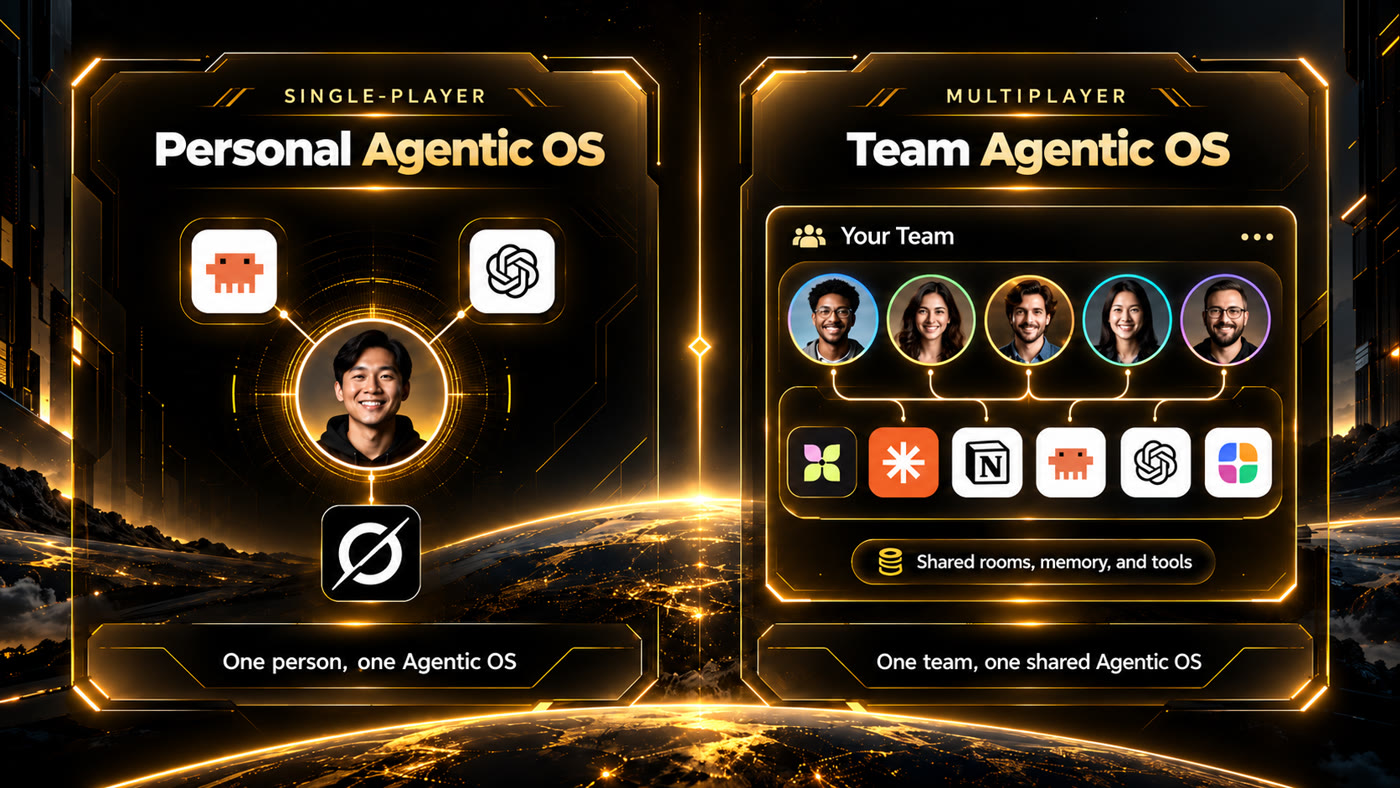
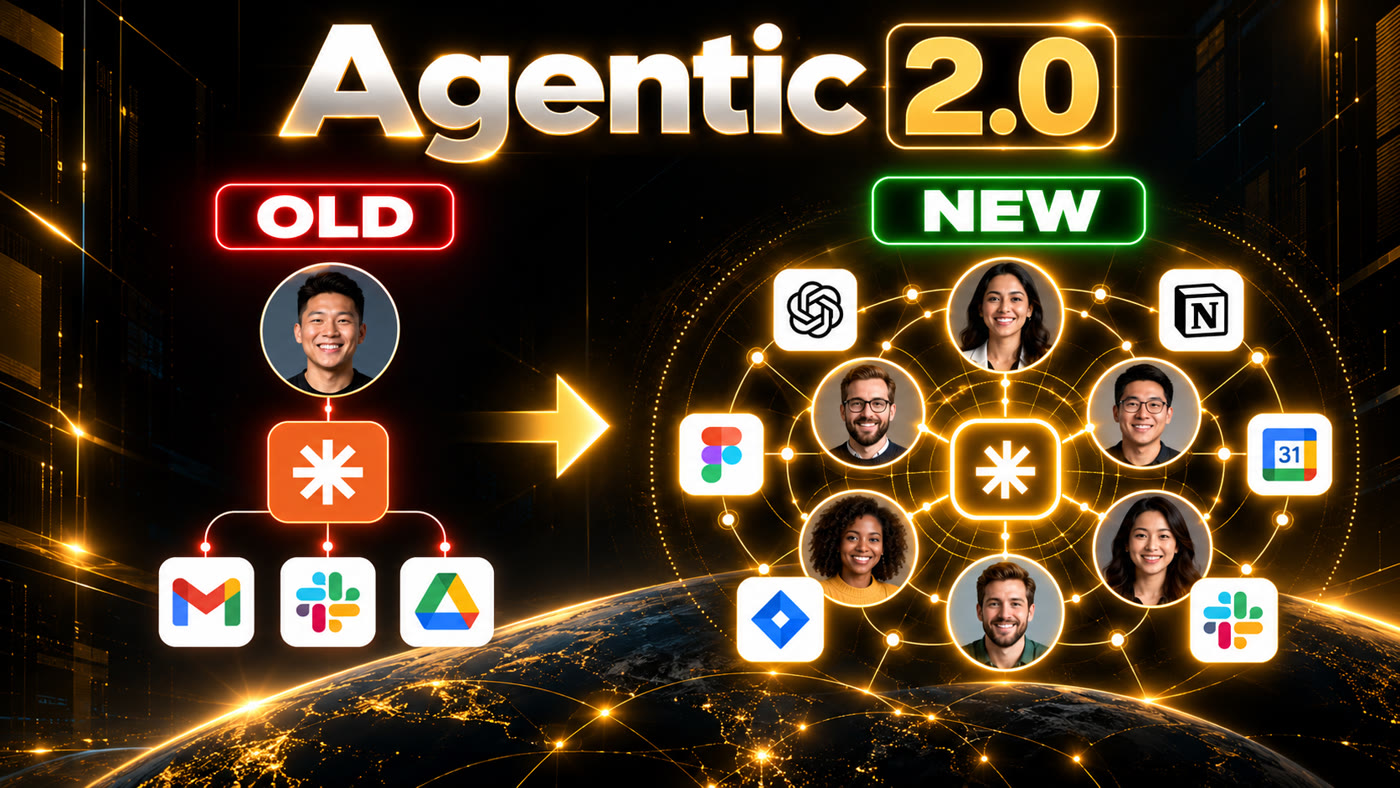
First practical version of the Multiplayer Agentic concept: instead of each person talking to their own AI alone, everyone talks in the same place.
Call @claude or @codex in the conversation. Both answer in the room, using your Claude Code and Codex subscriptions.
A single bot receives the messages. The agents reply through it with their name in front ("Claude: ...").
In atendimento (support) mode, the reply to the customer becomes a draft and only goes out after someone on the team approves it.
Ask, "create an agent to review my writing." Claude returns a proposal with estimated cost and time, and the agent joins only after the owner approves.
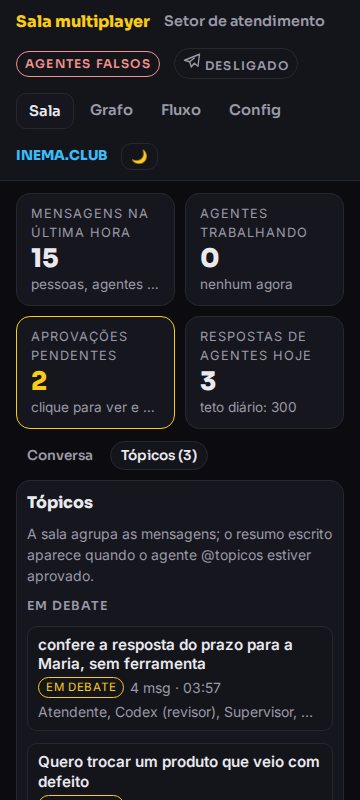
The conversation is grouped into topics in the right column. Click one to see a summary: what was decided, what is pending, who took part and how much it cost.
Each message becomes a sequence diagram or a graph with numbered arrows: who called whom, in what order and how it ended. Beside it are the request, decisions and pending items.
Every message enters the room, goes to whoever was called and appears on the dashboard right away.
pessoa (personal): you and your agents; the bot ignores anyone who is not the owner. atendimento (support): customers write on Telegram, Claude answers using the answer base, Codex reviews when the team asks, and a supervisor or agent approves.
The agent asks with one line, FERRAMENTA: nome | entrada, and the room runs it. Examples: base (answer base), chamado (ticket), notas (notes), hora (time).
Between agents, only an @id at the start of a sentence calls someone ("@codex, can you review this?"). Mentioning a name in the middle of a message does not call anyone. A reply that only confirms ("okay, I will wait for the Owner") calls no one and gets the "confirmation only" label. An agent calls someone back only if it asks them a question.
Up to 10 consecutive turns between agents (6 in atendimento), up to 12 agent replies per message across all branches (8 in atendimento), a daily limit (400 and 300), a limit per guest (30) and, if you want, per agent. The limit notice appears once per message.
Agent limits, model and effort, and guest rules are set on the Config screen with the owner password, or on Telegram with /config. Anyone else can ask in the chat, and the owner approves.
The dashboard only opens on this machine (127.0.0.1). Messages from other people are treated as data, never as instructions. The agents run without the CLI tools, without MCP and in an empty folder.
The demo runs on Node alone. For the real agents, both CLIs must be logged in to your account.
The room uses the SQLite that ships with Node (node:sqlite), with no dependencies to install.
# check the version
node --version   # v24 or higher
Installed and logged in with your subscription. The room calls both CLIs; it does not use an API key.
# both must respond
claude --version
codex --version
Without a bot, the room works through the dashboard only. With a bot, you need the token from @BotFather.
# on Telegram
@BotFather → /newbot
Start with the demo, which uses fake agents and costs nothing. Then turn on the real agents and, last, Telegram.
There is no npm install: the project has no dependencies.
git clone https://github.com/inematds/sala-multiplayer
cd sala-multiplayer
It opens the atendimento profile with fake agents, so you can see four screens working: customers, a proposal for a new agent, topics and the visual flow. The demo starts fresh each time and does not touch the real room data.
npm run demo   # open http://127.0.0.1:4601
npm test       # 46 tests, no agents or Telegram called
Pick the profile. In the dashboard, write @claude or @codex to call an agent.
npm run pessoa        # you and your agents   → http://127.0.0.1:4600
npm run atendimento   # support desk          → http://127.0.0.1:4600
In @BotFather, create the bot and copy the token. For the bot to read group messages, turn privacy off.
/newbot       # pick a name and copy the token
/setprivacy   # pick the bot → Disable
The .env stays out of git. Find your numeric id with @userinfobot. In atendimento, also fill in the supervisor and agent ids.
cp .env.exemplo .env
# SALA_TELEGRAM_TOKEN=      token from @BotFather
# SALA_DONO_TELEGRAM_ID=    your id
# SALA_SUPERVISOR_TELEGRAM_ID= / SALA_ATENDENTE_TELEGRAM_ID=  (atendimento)
A Telegram bot cannot start a conversation. Without /start, it cannot notify people about approvals. Then run the profile again: the Telegram badge at the top of the dashboard shows "on".
/start                # each team member, once
npm run atendimento   # or npm run pessoa
In atendimento, the draft appears at the top of the dashboard. Approve it there (you can edit it first) or on Telegram.
/aprovar 3   # sends draft 3 to the customer
/recusar 3   # discards draft 3
The person sends /entrar to the bot in a private chat. You receive the request on Telegram, and it also appears under "Pending approvals" on the dashboard (accepting it there requires the owner password). The guest can chat and call agents, but cannot approve anything or change settings, and has their own daily reply limit. To disable access, use /remover or the button on the Config screen.
/entrar        # the person, in the bot
/aceitar 7     # you: "Request 7: Ana (@ana) wants to join"
/recusar 7     # or reject
/remover ana   # disables access; they can leave with /sair
Write what you want in the room. Claude does not create anything on its own: it returns a proposal (name, role, engine, tools, daily limit) with cost and time per reply measured from previous replies. Without @topicos, the room groups messages into topics but does not write summaries. Once approved, each topic gets a summary, decisions and pending items, and each message uses one extra call from your subscription.
# in the room
@claude cria um agente que revise meus textos
@claude cria um agente que organize a conversa em tópicos   # id: topicos
/aprovar 4   # or on the dashboard, under Pending approvals
On the Config screen with the owner password (SALA_DONO_SENHA in .env), or on Telegram. Changes take effect right away.
/config                         # shows everything
/config teto_rodada 12           # agent replies per message
/config agente.claude.nivel super
The profiles in perfis/ define who takes part, each agent’s personality, the tools, the default route, who approves and the limits. Copy one and run it with the new name.
cp perfis/atendimento.json perfis/vendas.json
node server.mjs --perfil vendas
Everything updates live, with no reload. The screens fit without scrolling from 360 to 1920 px wide.
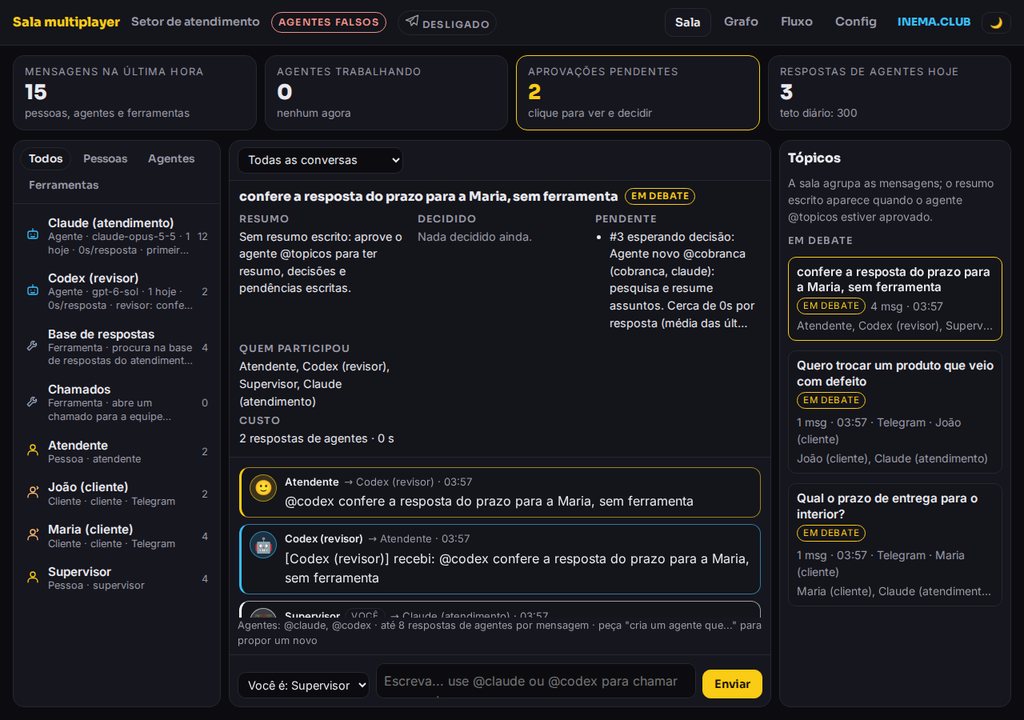
/): at the top are messages from the last hour, agents working, pending approvals and replies today. Participants are on the left. In the middle is the chat in one column: each message has an avatar and a colored border (yours are white, people are yellow, agents are blue, system is red). On the right are the topics: click one to filter the chat and open its summary at the top (decisions, pending items, participants, cost, "View flow").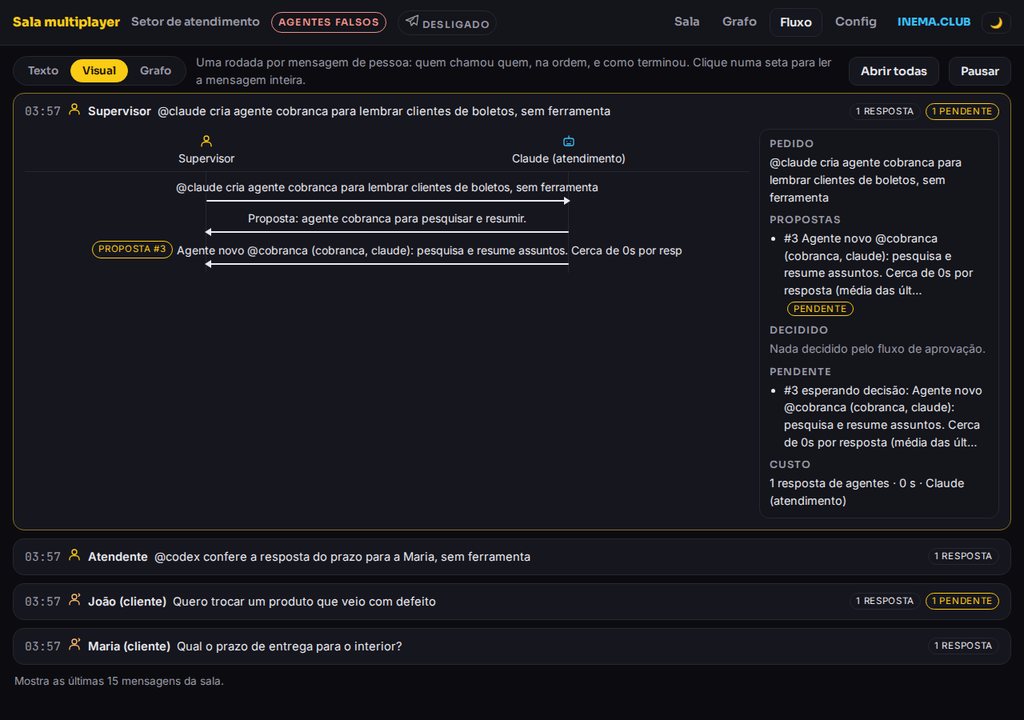
/fluxo?v=visual): one round per person’s message, with one column per participant and one arrow per reply. Markers show proposals, limits, errors and "confirmation only." Beside it is the resolution panel: request, proposals, decisions, pending items and cost.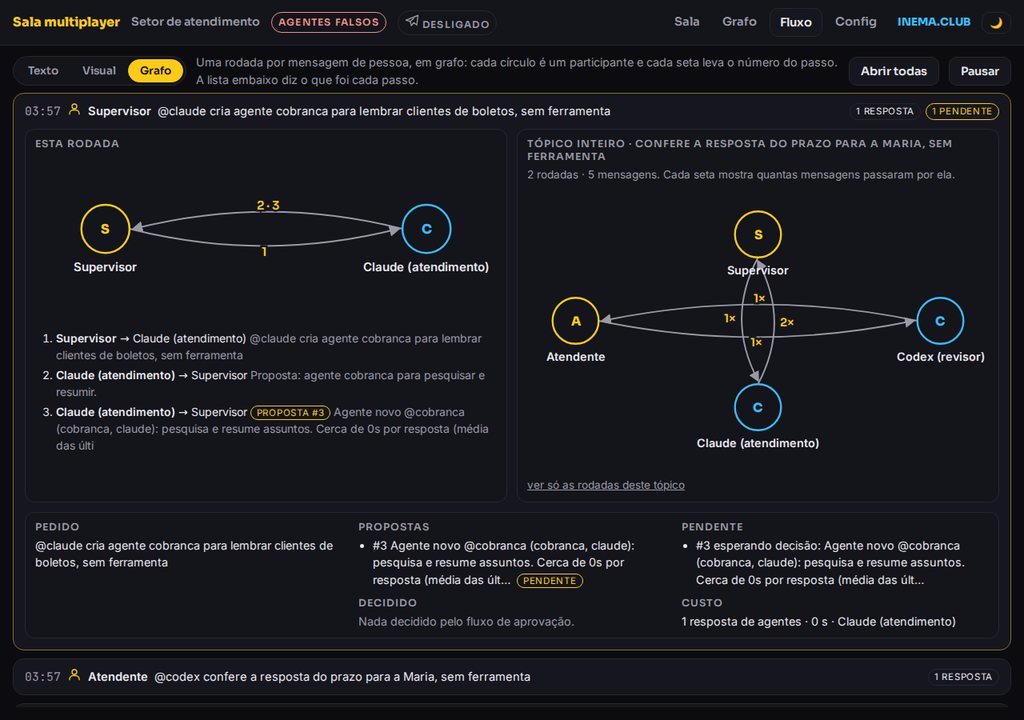
/fluxo?v=grafo): the same round as a graph. Each circle is a participant and each arrow shows the step number; the list below describes each step. Beside it is the graph for the whole topic: every round on that subject, with the number of messages along each arrow. A quick way to spot loops between agents.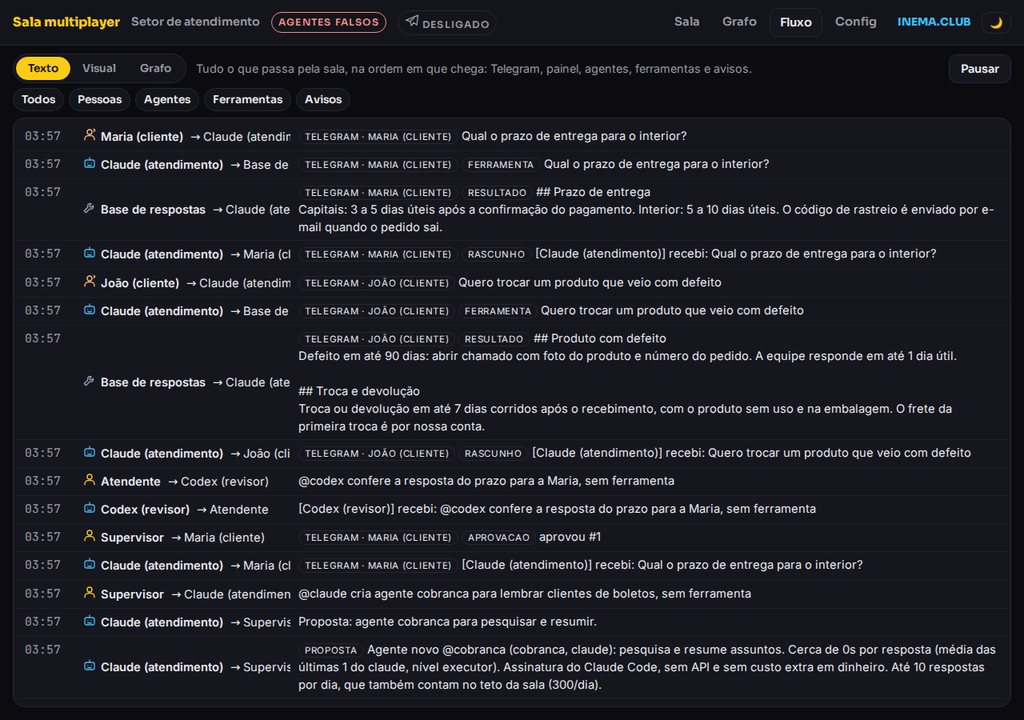
/fluxo): everything coming in and going out, in the order it happens. The Text | Visual | Graph button changes the mode; "All" turns all filters back on; in Visual and Graph modes, "Open all" opens every round at once; Pause freezes the list.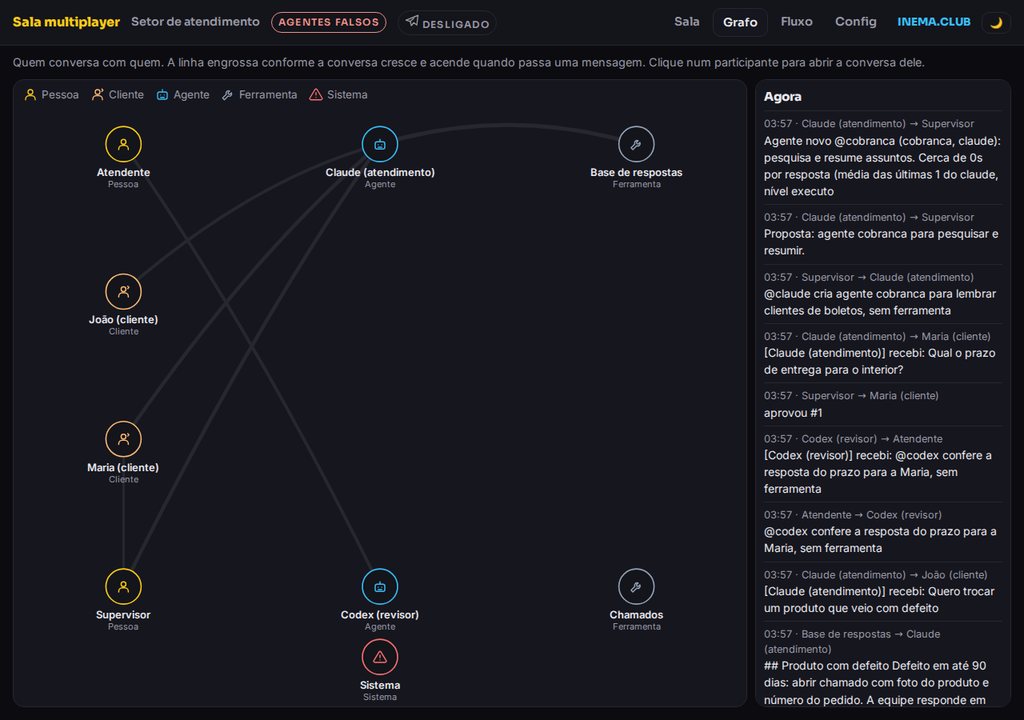
/grafo): who talks to whom. The line gets thicker as message volume grows, and a dot moves along it with each message.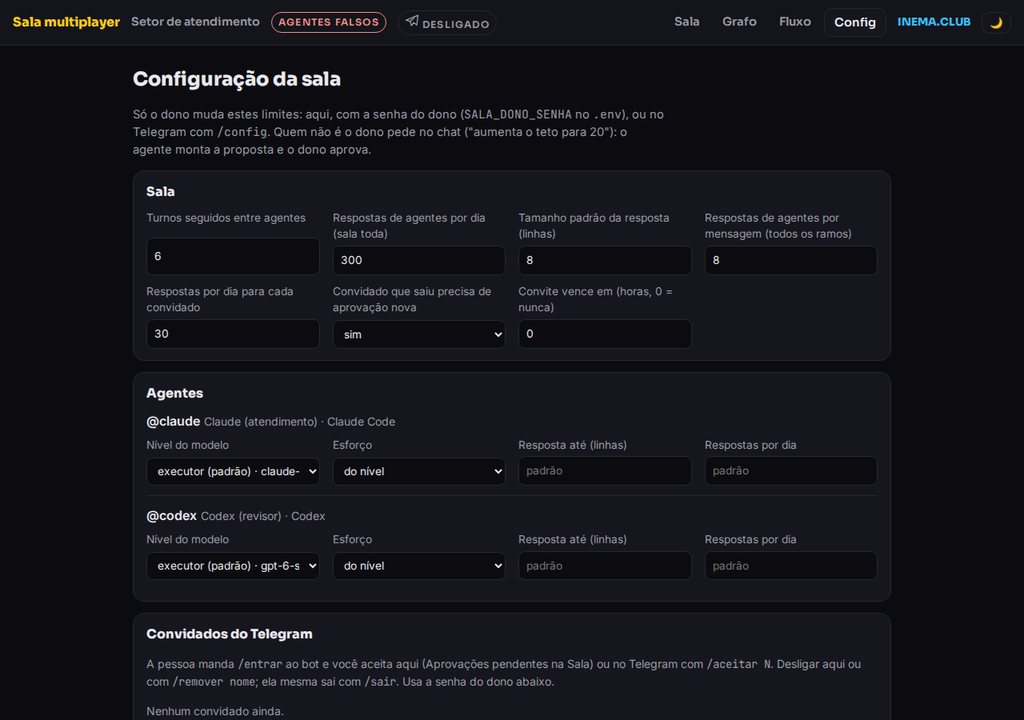
/config): limits for the room, each agent and guests, plus a button to enable or disable each Telegram guest. Owner only, with password.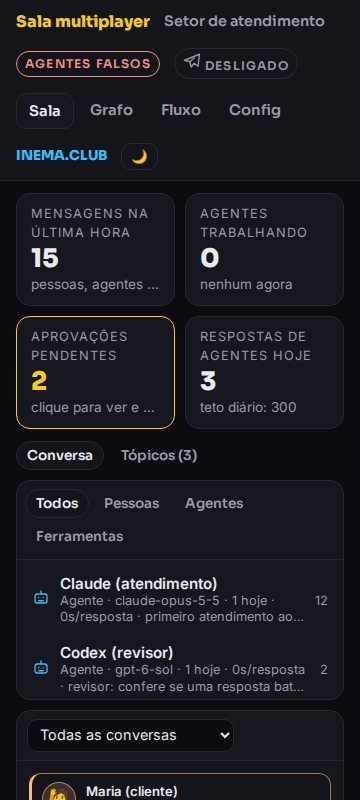
v0.8 is published. What is already included and what comes next:
/config on Telegram, which only the owner can change.@ only at the start of a sentence, "confirmation only" does not call anyone, room state in agent prompts; invite guests on Telegram with /entrar and /aceitar.@topicos agent writes the summary once approved.@conselho-gestao convenes the council and returns the summary.