
If you leave bots and AI routines running on their own, you only find out about a problem when someone complains. Zelador is a free agent, a program that works on your computer and keeps an eye on things for you: every night, it checks what went wrong on your computer, and every week it gathers what is worth fixing in a simple form for you to decide. If you don’t keep notes about what goes wrong yet, it creates the lists. If you already keep notes, it uses yours. To install it, just ask your AI.

Before and after Zelador
😩 Without Zelador
A routine fails and no one tells you. You find out days later, when the work hasn’t arrived or a client complains.
The same error comes back, someone fixes it again, and the lesson gets forgotten in a note no one reads again.
😌 With Zelador
In the morning, you get a short notice on Telegram or your computer screen: what failed, what keeps happening, or that everything ran smoothly overnight.
On Monday, you open a form listing what is worth fixing, with the most important items first, and decide on each one.
🔔 You find out first
A routine that fails, records an error, or stops running shows up in the morning notice, before anyone has to complain.
🔁 A suggested fix comes with it
If you turn on explanations from your AI, an installation option, it reads the records and suggests a fix for that case. When the data doesn’t show the cause, it tells you what still needs checking.
🧭 You stay in control
Nothing gets fixed without your decision. You can approve it, reject it, leave it for review, or put it off.
How this changes your day
You don’t need to know how to code to notice the difference. Here are some common situations when you leave routines running on their own.
💾 The backup
Today: it has failed for three nights, and you don’t even know.
With Zelador: if it fails, records an error, or stops running, you’ll see it in the morning notice. If it can’t check, the notice tells you that too.
🔁 The same old error
Today: the same problem comes back, and someone fixes it by hand each time.
With Zelador: your AI starts noting the failures that happen while you work with it. When one keeps coming back, it points this out and suggests how to prevent the error.
📝 “I’ll do it later”
Today: the task goes on the list and stays there for months.
With Zelador: a task with a date that has been waiting for two weeks comes back to you to decide: do it, put it off, or let it go.
- Overnight · it checks
routines that failed or stopped running, low memory, recurring errors, and a nearly full main drive. - In the morning · you get a summary
on Telegram or your computer screen, whichever you choose. If everything ran smoothly, it’s just one line. If it couldn’t check something, it tells you what. - On Monday · your weekly list
a link to the form, with the most important items first. It opens on the computer where Zelador is installed: open Telegram on that computer and click. If you don’t use Telegram, ask your AI: “open the Zelador form.” - When you have time · you decide
select each item and click “Close the week”: approved items and those you asked to review go to your task list, and then you just ask your AI to do them. If the problem continues, the item comes back marked as approved. Rejected items disappear for 8 weeks. Postponed items keep showing up while the problem exists.
A building caretaker, in plain language
Think of a building caretaker: they make their rounds at night, write down what they find, then ask the building manager what should be fixed.
🔦 1. The night rounds
Every night, it reads your computer’s records—the notes showing what each routine did—and sorts out what is serious from what just needs attention. By looking at the computer’s history, it learns each routine’s usual schedule and notices when one misses its time. Then it sends you a summary.
📋 2. The weekly list
Every Monday, it gathers recurring errors, bad nights, things that got in your way, and forgotten tasks, with a priority for each one.
✍️ 3. Your decision
With AI explanations turned on, each item says what happened, the likely cause, and a suggested fix. Without it, you get a ready-made summary. You decide what to do.
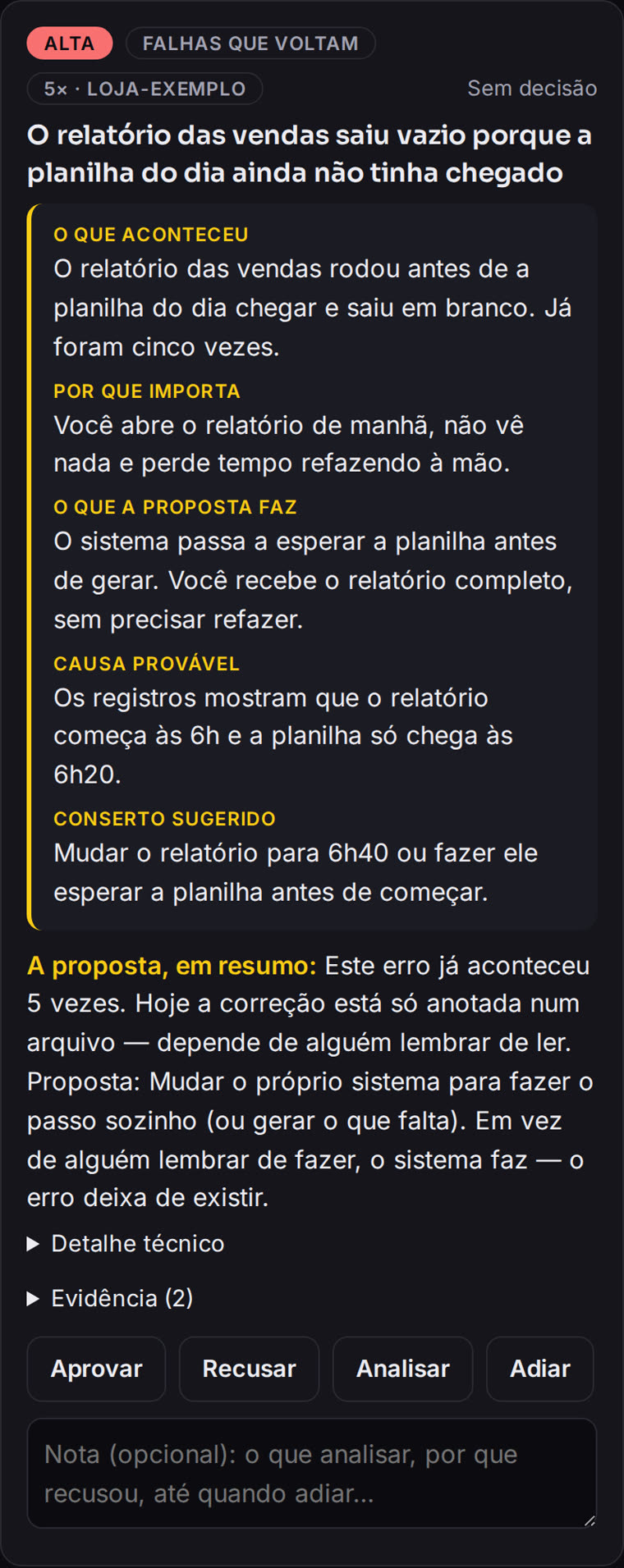
Example with made-up data and the AI turned on. When the logs do not show the cause, it says what still needs checking. The screens are in Portuguese for now.
🌙 An example of the morning notice
Night of 2026-11-17: 1 SERIOUS, 0 needing attention
• the backup-diario routine failed 1×
Report: file address with the details
To understand or fix it, paste this notice into your AI.
The notice is short and clear. If you want an explanation or a fix, just do what it says: paste it into your AI.
🧩 It adapts to what you have
Don’t keep notes yet? It creates four simple lists: what went wrong, what you learned, what got in your way, and what you left for later.
Already keep notes under other names? If you don’t have its lists yet, it uses yours without making copies, and your AI checks whether the format works.
Already have other alerts? It suggests using what they produce.
🔒 What it doesn’t do
It doesn’t fix anything on its own: it finds issues, explains them, and suggests fixes.
It doesn’t overwrite your files.
It doesn’t send your data to a service of its own, because it doesn’t have one. The only things that leave your computer are what you turn on: the notice and AI explanations.
Is it right for you?
It’s best to know now what it can and can’t see.
✅ It’s a good fit if
- Your routines run on a computer with Linux, an operating system like Windows that is often used on computers that stay on, and they were scheduled using the same user account you use to log in. Not sure? Your AI can check before installing.
- This computer usually stays on. If it’s off during the night rounds, it checks when the computer is back on. If the computer restarts, or you log out of your account, it may stop until a one-time adjustment is made with the administrator password. Your AI’s initial check will tell you about this and whether anything is missing.
- You use Claude Code or Codex. They install it and check whether your computer has what it needs.
🚫 What it can’t see
- Things that run on internet services, like a scheduled post on social media.
- Routines belonging to the administrator or another computer user.
- A scheduled task that doesn’t save a record—a file where it notes what it did. In that case, the notice says it couldn’t check.
- An error the task doesn’t write to its record, or writes in words it doesn’t recognize. Ask your AI to check each routine during installation.
- Routines that run in the cloud, even those created by your AI.
- A wrong result that leaves no sign, unless the failure is written down.
📱 What about a phone or another computer?
You get the notice wherever you choose. The form opens only on the computer where Zelador is installed. To open it on a phone or another computer, you need a private network, a secure connection between your devices. Your AI can guide you.
💻 Mac and Windows
We haven’t tested it yet. Outside Linux, it would be able to see much less, so don’t count on it working with these systems for now.
🔕 What if no message arrives?
If you turned on the notice, check what’s wrong. It sends a line even on quiet nights, so silence means something stopped the rounds. If that happens, ask your AI to check.
Ask your AI to check first
You don’t install anything by hand. Your AI reads about Zelador, checks what you already have, and explains what it would do.
1. Open your AI
Use Claude Code or Codex (two AIs that work on your computer) on the computer where your routines run, in the folder where your projects are. If you’re not sure where that is, or don’t have a project folder, open your AI where you usually do—the request covers that. If the routines run on another computer and you don’t know how to access it, ask whoever set it up.
2. Paste the request below
It downloads a copy of Zelador to a separate folder and only runs a check: it doesn’t change your files or install anything.
3. Say yes if it makes sense
If you say yes, it installs Zelador in a permanent folder, turns on the notice, schedules the rounds, turns on simple explanations if you want, and starts noting failures that happen while you work with your AI.
Read the Zelador project at https://github.com/inematds/zelador (the README explains everything, including how to install it).
Download a copy to a temporary folder outside my projects, and run only the diagnostic from the folder where my projects are (look for it; if I don’t have one, continue without it). Don’t change anything.
Then reply to me in plain English:
1. Can it see the routines that run here? What would it see, what wouldn’t it see, and will it keep running when no one is logged in?
2. What do I already have that it can use?
3. What’s missing that it would create?
4. Where would I get the notices, and what would I need to do for that?
Don’t install or change anything yet. Show me the plan and wait for me to say yes.
When I say yes, install it in a permanent folder, never the temporary one.
🛠️ Prefer to install it by hand?
The commands and details are on the project’s technical page.
In its first full run, it already found real problems
We ran Zelador on a real computer with dozens of automatic routines and a good history of recorded failures.
The first rounds and weekly list were completed on 17/11/2026, after installation, checking the previous 24 hours on one computer. We don’t publish the reports because they contain data from that computer. If you start with empty lists, your weekly list will be much shorter in the first few weeks.
Before you get started
Do I need to know how to code?
No. You paste the request, read the plan, and say yes or no. Your AI installs it.
How much does it cost?
Nothing. Zelador is free. You just need to already have Claude Code or Codex. AI explanations are optional and use a little of your AI allowance.
How do I get the notice?
You choose during installation. Telegram works best: it waits for you in the morning. You’ll need to create a bot there, and your AI can guide you. You can also use an on-screen notification, which appears overnight and may be easy to miss, or just save the report.
What if I already write everything down?
It never overwrites your files. The initial check shows what it can use and what would need adjusting, and nothing changes until you say yes.
Does my data leave my computer?
Zelador doesn’t have any internet service of its own. Only the things you turn on leave your computer, but keep in mind: the notice may include parts of the records, and the explanation sends your AI the details for each item and the end of the records. It tries to hide passwords, but can’t guarantee it catches them all. If the records include client or patient data, ask your AI to remove those parts from the notice and leave explanations turned off.
Does it fix errors by itself?
No, by design. It gives you a suggestion, and you decide. Then just ask your AI to do what you approved.
What about you: if one of your routines failed tonight, how long would it take you to find out? Free at inema.club. Runs on your computer.