🖥️ Desktop app, terminal, and Telegram
With the agent connected, now it's about how to talk to it. Hermes offers three access points — desktop app, terminal, and Telegram — plus some game-changing tools: sessions, conversation branching/forking, and artifacts. This is the last hands-on module before the projects.
🖥️ The desktop app
The most user-friendly way into Hermes is the desktop app. It looks like a chat app: you open it, start a session, and chat — without having to memorize commands. If you find the terminal intimidating, this is a good place to start.
Tip: the desktop app and the terminal are two ways to access the same agent. Choosing one doesn’t turn the other off—it’s a matter of comfort. Start in the app; move to the terminal when you want commands.
Key concepts
Graphical chat interface for Hermes.
A good starting point for beginners.
Starts a new conversation with the agent.
The app and terminal talk to the same agent.
⌨️ The terminal
For those who like control, Hermes also lives in the terminal. You’ve already seen some commands (update, status, doctor). Here are two more: hermes dashboard, which opens the panel, and hermes setup, for the initial setup.
🎯 Objective
Open the Hermes panel and (if you haven’t already) run the initial setup — all from the command line.
hermes dashboard
hermes setup
How to verify: hermes dashboard open the agent panel; hermes setup guides the initial setup. To check that everything is healthy beforehand, remember to hermes status e hermes doctor (module 2.5).
✓ When the terminal shines
- ✓Automation and scripts.
- ✓Quick diagnostics (status/doctor).
- ✓Access to remote machines/servers.
- ✓Fine control over everything.
🖥️ When the app shines
- •Daily use and conversation.
- •View sessions and artifacts.
- •No need to memorize commands.
- •Beginner-friendly.
Key concepts
Open the agent panel.
Sets up the initial configuration.
Terminal is ideal for automation.
App and terminal, same agent underneath.
💬 Telegram: the agent in your pocket
The third way in is the most surprising: you can talk to your agent through Telegram, as if it were a contact. You send a message from your phone, and Hermes — running on your machine at home — replies. Your local agent is accessible from anywhere through a chat app you already use.
📲 What this unlocks
- •Mobility: talk to the agent without being at the computer.
- •Familiarity: the interface is the Telegram chat, which you already know.
- •Continuity: the intelligence lives on your machine; your phone is just the remote control.
Privacy note: using Telegram puts a messaging app in the middle. For tasks involving sensitive data, remember the modes from Track 1 — you’ll explore this further in Project 7 (Track 3), where the agent on your phone is the main focus.
Key concepts
Talk to the agent through a chat app.
Your phone is in charge; the brain stays at home.
Access from anywhere.
Track 3 goes deeper into using it on your phone.
🗂️ Sessions: conversations that persist
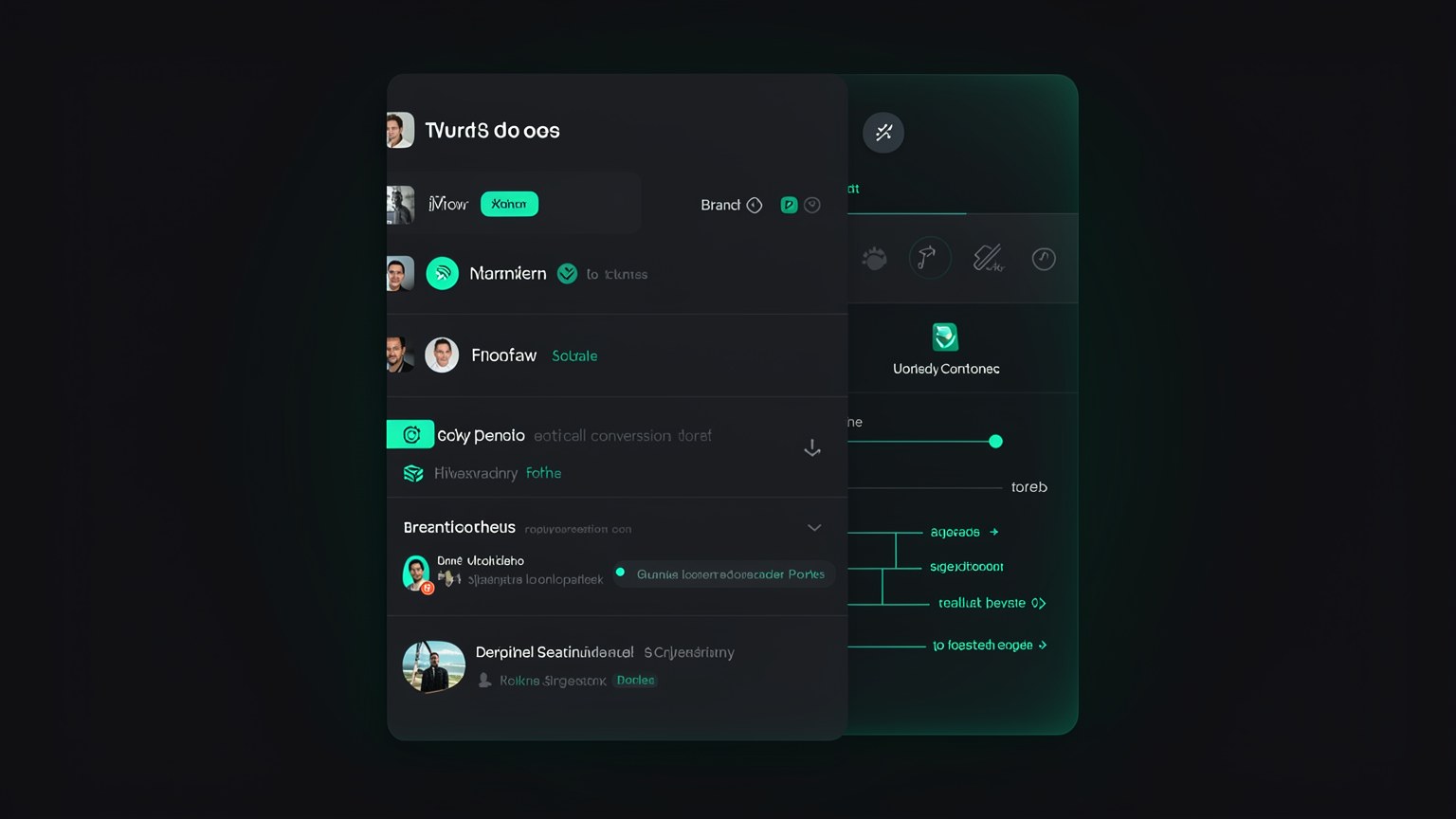
A session and a conversation saved with the agent. You start a "New session", work in it, close the app—and you can come back later and pick up right where you left off. Unlike an ephemeral chat, the session persists: the context for that task is saved.
New session
Each task can have its own conversation, separate from the others.
Persistence
Close and reopen: the session is still there, with the history preserved.
Organization
Separating by session avoids mixing contexts from different tasks.
Key concepts
Conversation saved and resumable with the agent.
The history survives after you close the app.
Pin the most important sessions.
One task per session avoids mixing things up.
🌿 Branch / fork a chat
Here's a powerful feature: you can fork a conversation. At any point, the chat splits into two lines that start from the same history but follow different paths — like a fork in the road. Useful for exploring two approaches without losing either one.
New here? "Branch" and "fork" come from the world of code: they mean creating a copy that starts from a common point and continues on its own. In a conversation, this lets you test "what if I asked another way?" without deleting the original version.
In the fork point, the conversation splits: the branch A tests one path and the branch B another, both starting from the same history. You compare the two without losing either—ideal for "what if I tried another way?".
Key concepts
Split a conversation into two branches.
Both lines start at the same point.
Test approaches without losing the original.
The starting version stays intact.
📦 Artifacts: save and view outputs
When the agent produces something concrete—a file, a code snippet, a document—that becomes a artifact. Instead of getting lost in the middle of the conversation, the result is saved as an object you can view, open, and reuse later. That's how Hermes keeps your work from slipping away in the chat.
📦 Why artifacts matter
- •The result isn't lost: the output stays separate from the chat.
- •Reusable: you return to it later, in another session.
- •Tangible: the agent’s work becomes something you can save, not just text scrolling on the screen.
💡 Wrapping up Track 2
You installed Ollama, chose the model, created qwen3-coder-64k, connected it to Hermes, and now know how to talk to it through three channels, organize sessions, fork conversations, and save artifacts. The foundation is ready — in Track 3, all of this becomes real projects.
Key concepts
A concrete output saved by the agent.
The result doesn’t get lost in the conversation.
You return to it in another session.
It goes from ephemeral to something you can save.
Optional self-check: What does it mean to "fork" a conversation in Hermes?
🎯 Module summary
End of Track 2! Next stop:
Track 3 — Projects: each module becomes a hands-on project using what you built here.