💬 Project 1: 100% local private chat
Enough theory. This is your first end-to-end project: build an AI chat that runs entirely on your machine, responds with the internet turned off, and even lets you fork the conversation into two lines of reasoning. Follow the steps — each one has an objective, instructions, how to verify it, and the expected result.
The project path in one line: from model pull until the private chat, through the test offline — the moment that proves everything runs on your machine.
🎯 Goal: chat 100% offline
The goal of this project is simple and powerful: to have a AI chat that works without internet, running entirely on your computer. No messages leave the machine, there's no cost meter, and AI remains available even offline. It's the clearest proof of everything you saw in Tracks 1 and 2.
🧭 What you’ll have at the end
- •An open model downloaded and ready on your machine.
- •A chat running in the terminal or in the Ollama app.
- •Living proof that it responds with Wi-Fi turned off.
- •A conversation forked into two lines of reasoning.
New here? "Offline" means without any connection to the internet. Since the model and your data are on your disk, the chat doesn’t need to ask a server for anything—that’s why it works on a plane, in the field, or when the network goes down.
Key concepts
The conversation happens on your machine, from start to finish.
Works without internet — the AI is on your disk.
After downloading, every conversation is free.
Nothing you write leaves the machine.
⬇️ Make sure a model is installed on your machine
Step objective: have the course’s fast model downloaded to disk. Without a local model, there’s nothing to run offline. You’ll use the Qwen 3 30B-A3B in the quantized (lighter) version, which is the "fast model" shown in the video.
🎯 Step by step
- Open the terminal (or use the Ollama app, installed in Track 2).
- Run the pull command below to download the model (≈18 GB).
- Wait for the progress bar to reach 100%.
Command to paste (goal: download the model):
ollama pull qwen3:30b-a3b-q4_K_MHow to verify (the model appears in the list):
ollama list
# saida esperada (exemplo):
# NAME                       SIZE
# qwen3:30b-a3b-q4_K_M       18 GB
💡 Practical tip
The passage q4_K_M and the quantization level (the model "shrunk" to fit better in memory). If your machine has little RAM, it's worth downloading a smaller model first, testing it, and deleting it with ollama rm <modelo>. Exploring is cheap.
Key concepts
Downloads the model to your disk.
q4_K_M makes the model smaller and lighter.
Confirm that the model is on the machine.
Download once; then run offline.
💬 Open the chat (terminal or app)
Step objective: start the conversation. You have two ways to use the same model — the terminal (fast, direct) and the Ollama app (with a chat window). Choose whichever feels more comfortable; both use exactly the same local model.
✓ Terminal path
- ✓Fast and always available.
- ✓Works on any OS.
- ✓Exit the chat with
/bye.
🖼️ App route
- •Friendly chat window.
- •Good for people who don’t like the terminal.
- •Choose the model from the app’s list.
Command to paste (goal: open the chat in the terminal):
ollama run qwen3:30b-a3b-q4_K_M
# o prompt fica aguardando voce digitar.
# experimente: "explique em 2 linhas o que e teoria das cores"
# para sair do chat, digite: /bye
How to verify: the model answers your first question. The first time you use it, it may take a little longer (while loading into memory)—that’s normal.
New here? ollama run does two things: if the model isn't loaded, it loads it into memory; then it opens a chat right in the terminal. You can use run directly without having done the pull before—it downloads automatically—but separating the steps makes the process clearer.
Key concepts
Loads the model and opens the chat in the terminal.
Exit the terminal chat.
The same model, with a graphical interface.
The first response takes longer (the model is loading).
✈️ Test offline (the moment of truth)
Step objective: prove, beyond any doubt, that the chat doesn’t depend on the cloud. You will turn off the internet and ask another question. If the model responds, that's proof: the intelligence is on your machine.
With the chat open, turn off Wi-Fi
Disconnect from the network (turn off Wi-Fi or unplug the cable). In the video, it literally means “pull the cable.”
Ask a new question
Ask anything. For example: “summarize color theory in 3 points.”
Watch the response arrive
The model responds normally — without a network connection. Test complete.
On the left, with no network, the call to the server fails; on the right, the local model works even offline — exactly what you just tested.
Why this matters: this test is what turns "I believe it’s local" into "I saw it work". In flight, somewhere without a signal, or when the network keeps dropping, your chat keeps working.
Key concepts
Proof that nothing depends on the cloud.
The AI is always there, without relying on a network.
Without a network connection, there’s no way for the data to get out.
A network outage doesn’t leave you stuck.
🌿 Fork the conversation into two lines
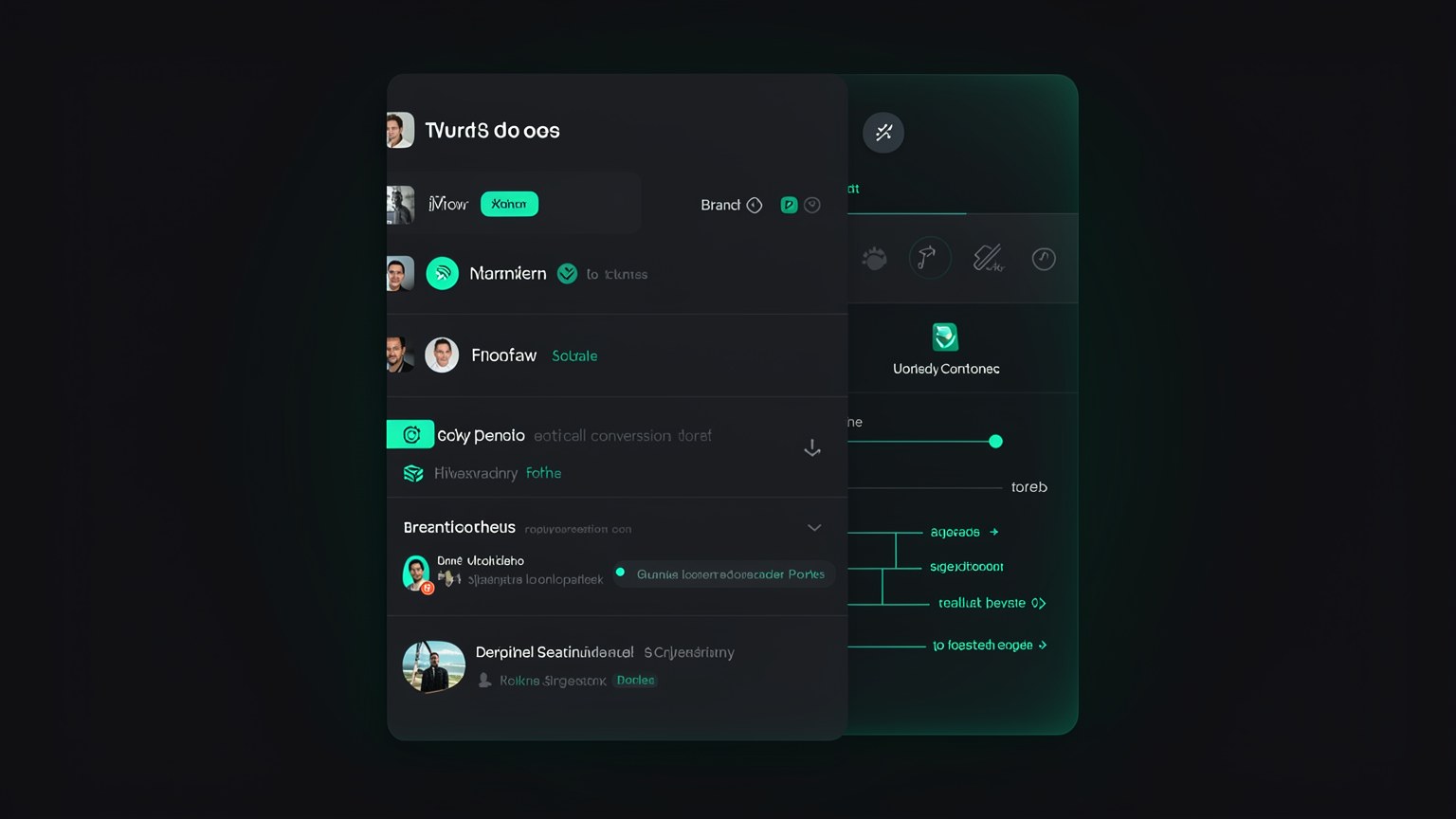
Step objective: learn to create a fork (branch) off a conversation to explore two paths from the same point without losing the original. In the Hermes app, this appears in the Sessions list, with conversations that branch off.
🎯 How to do it (action in the interface)
- Have an ongoing conversation.
- Choose the message you want to branch from.
- Create its fork/branch (the UI shows the resulting Sessions).
- Ask a different question in each branch and compare.
How to verify: two conversation branches appear side by side in Sessions, starting from the same message.
📊 When forking helps
- •Test two response tones (formal vs. informal) without redoing everything.
- •Explore two solutions to the same problem in parallel.
- •Keep the original conversation as the "source of truth".
New here? "Fork" (or "branch") comes from the world of code: creating a branch from a common point. In a conversation, it means opening a copy that follows a different path—without deleting the original.
Key concepts
A branch of the conversation starting from a shared point.
The list of conversations, including branched ones.
Two responses from the same message.
Remains intact—it isn’t deleted by the fork.
✅ Result: private chat without internet
Expected result: you have an AI chat that is your — private, free, and works anywhere. It’s the course’s first “this is really mine” moment, and the foundation that Project 2 will build on to create the complete Hermes agent in Vault.
🧾 Completion checklist
ollama list shows the downloaded model.ollama run) or through the app.⚠️ Did it go wrong?
- ✗"Command not found": reopen the terminal or check the PATH (covered in Module 2.1).
- ✗Very slow or freezing: the model may be too large for your RAM—try a smaller one.
- ✗"Doesn’t respond offline": make sure the pull is finished (100%) before disconnecting the network.
Optional self-check: What’s the PROOF that the chat is 100% local?
🎯 Project summary
ollama pull e ollama run bring the model and open the conversation.Next project:
3.2 — Hermes agent running locally (Vault end to end): from chat to a full agent, 100% private.