🤖 Project 2: Hermes agent running locally (Vault end-to-end)
The leap from Project 1: from chat to full agent. You’ll connect the 64k model to the Hermes Agent, turn on Vault mode (airgapped), and have the agent perform a real task — all without a single byte leaving the machine. This is the course’s "holy grail": capable, 100% private, and $0.
The project’s path: from 64k model until confirmation that nothing came out, with the Vault connected in the middle — the step that makes the agent safe for sensitive data.
🎯 Goal: the entire agent in the Vault
The goal of this project is to run the Hermes Agent from start to finish using only your local model, in Vault mode — isolated from the internet. Unlike Project 1 (which was a chat), here the agent acts: it uses tools and carries out tasks, but everything stays on your machine.
🧭 What you’ll have at the end
- •The 64k model (from Module 2.4) connected to Hermes.
- •The agent operating in Vault mode, offline.
- •A real task completed 100% locally.
- •Confirmation that no data left the machine.
New here? "End-to-end" means the entire workflow—from your request to the result—happens without leaving the machine. "Air-gapped" is the security term for a system physically isolated from the network; Vault mode simulates this by disconnecting the agent from the internet.
Key concepts
LLM + tools: it takes action, not just responds.
Open source from Nous Research; you own the workflow.
Airgapped mode: the agent isolated from the network.
From the request to the result, everything on your machine.
🪟 Getting qwen3-coder-64k ready
Step objective: confirm that the 64k context model you created in Module 2.4 is available in Ollama. The Hermes agent requires 64k of context — a regular chat model won’t work, because memory and tools take up a lot of space.
🎯 Check the model (and recreate it if needed)
Command to paste (goal: check whether the 64k model exists):
ollama list
# procure por:
# qwen3-coder-64k
If it doesn’t appear, recreate it from the Modelfile in Module 2.4 (goal: derive the model with 64k context):
# Modelfile (conteudo):
# FROM <qwen3-coder:30b>
# PARAMETER num_ctx 65536

ollama create qwen3-coder-64k -f Modelfile
How to verify: ollama list shows qwen3-coder-64k. The section <qwen3-coder:30b> and the variable part—the base model you chose.
📊 Why 64k, in numbers
- •65,536 tokens of context (≈ 25-30 thousand words of "working memory").
- •The agent uses context for memory, instructions, and tool results.
- •Without enough context headroom, the agent "forgets" the beginning of the task along the way.
Note: a large context uses memory. A model with 64k uses more RAM than the same model with a small context. If your machine is under strain, this is where it can freeze—check the RAM headroom (covered in Module 1.4).
Key concepts
The parameter that defines the 64k context.
Derive the model from a Modelfile.
Hermes requires 64k; regular chat won’t work.
A large context uses more RAM.
🔗 Connect the model to Hermes
Step objective: make sure Hermes is up to date and select your local model as the agent's brain. First, the actual update command; then, the action in the interface to point the agent to your model.
🎯 Update and check Hermes
Command to paste (goal: get Hermes ready):
hermes update
# ao terminar, o painel mostra: "HERMES IS READY / Launch Hermes"
How to verify (the agent is healthy):
hermes status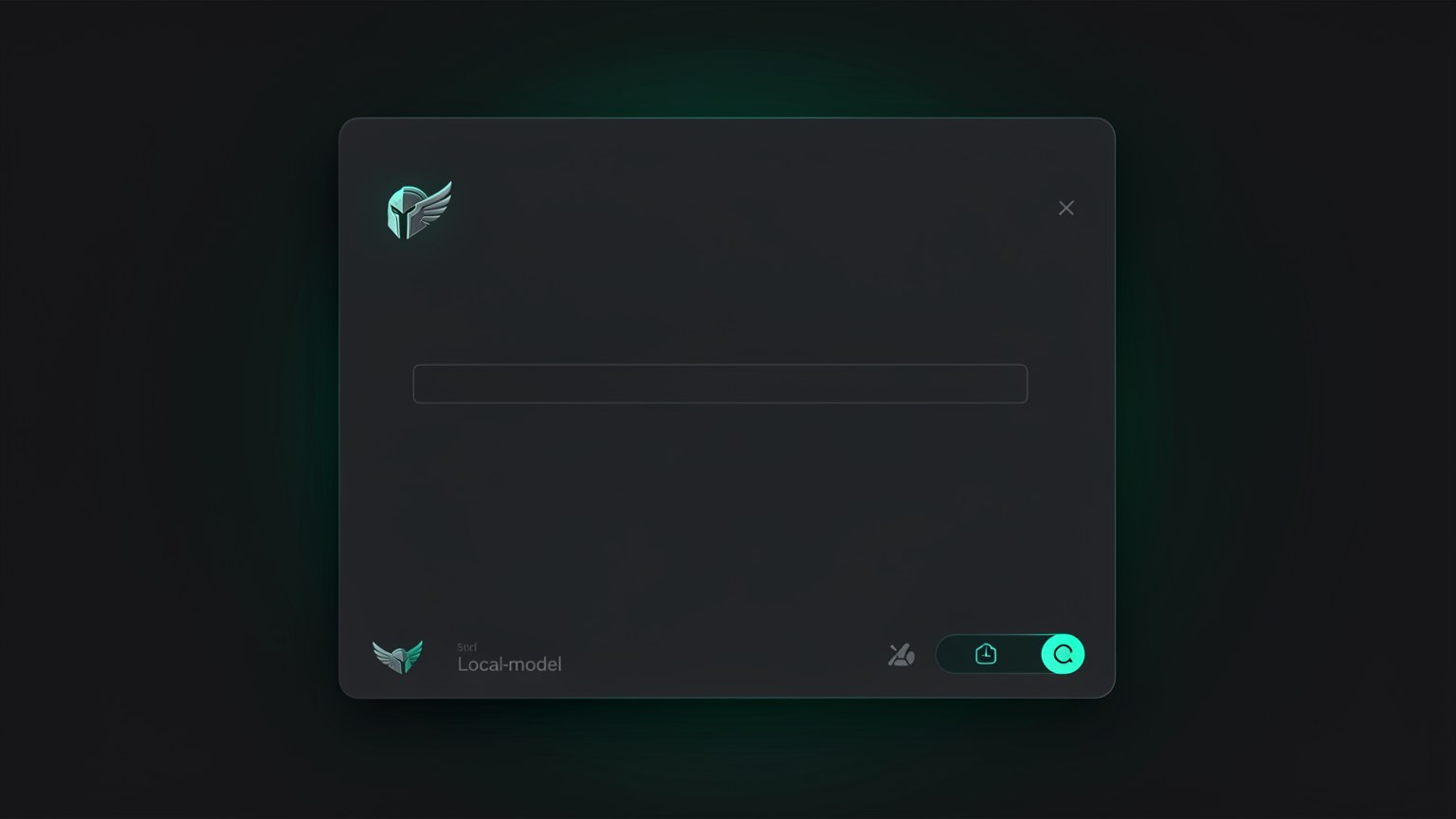
qwen3-coder-64k local, not the cloud.🖱️ Interface action (select the local model)
- Open the Hermes model selector.
- Choose your Ollama model:
qwen3-coder-64k. - Confirm: the name appears in the bottom-right corner.
How to verify: the bottom-right corner shows your selected local model.
Honesty: selecting the model is an action in the interface, not a terminal command. The actual Hermes commands you use here are hermes update e hermes status; the rest is clicking the selector.
Key concepts
Update Hermes ("HERMES IS READY").
Shows the agent's health.
Where you point the agent to the local model.
Where the active model is confirmed.
🗄️ Turn on Vault (airgapped)
Step objective: activate mode Vault, which isolates the agent from the network — like unplugging the internet cable. This is the technical guarantee that nothing leaks: the agent simply has no way out.
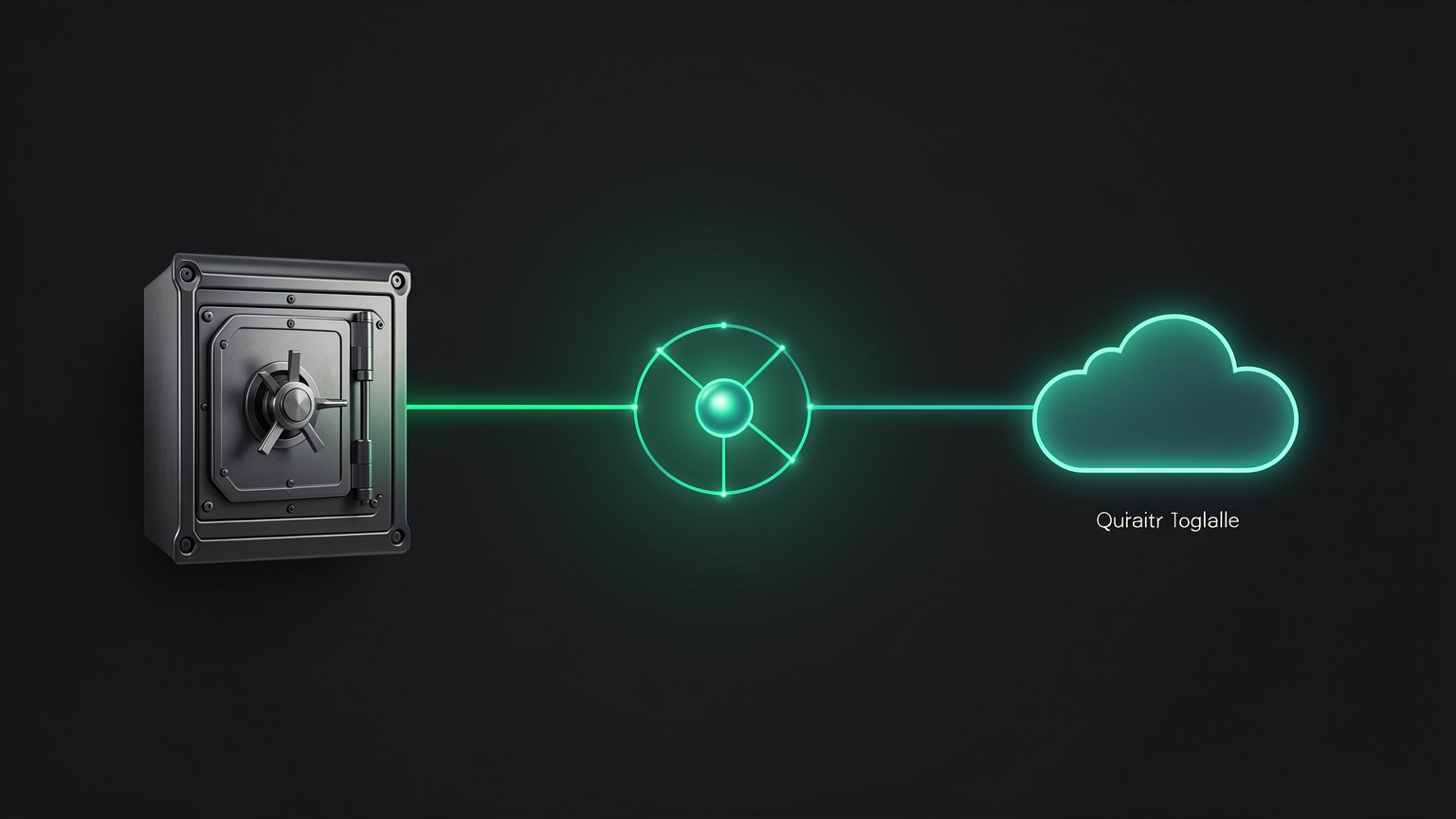
Select Vault mode
In the interface, choose Vault. The agent will use only the local model.
To be sure, disconnect from the network
Wi-Fi off or cable unplugged—the physical proof of the air gap.
Confirm the status
Hermes indicates that it’s in Vault / offline.
✓ With Vault, you GAIN
- ✓Customer/health/IP data never leaves.
- ✓Works offline (on a plane, off-grid).
- ✓$0 per use, even if you run it a lot.
✗ With Vault, you GIVE UP
- ✗No fresh web search.
- ✗Without the cloud’s frontier model.
- ✗The speed is determined by your machine.
No ideology: Vault isn’t for “everything.” It’s the right mode for sensitive data and offline use. When the task is difficult and there’s no sensitive data, you can switch to Connected or Cloud — that’s what Project 6 teaches.
Key concepts
The agent disconnected from the internet.
Without a network connection, there’s no way for the data to get out.
Privacy becomes a button you control.
Total privacy in exchange for cloud power.
🧪 Real task, 100% local
Step objective: give the agent a concrete task and watch it use tools to solve—proving that it doesn’t just chat, it acts. All of this in Vault, without a network connection.
🎯 Task suggestions (action in the agent chat)
- "Read this file and give me a summary in 5 points."
- "Organize these scattered notes into a task list."
- "Write an email draft based on these bullet points."
How to verify: the task finishes with a useful result, and you see the agent “working” (using tools), not just responding.
📊 Set expectations
The local model runs the SWE-bench benchmark at around 74 (the Qwen mentioned in the video, "runs on a laptop"), while the cloud frontier is around ~88. In other words: very capable, but not a frontier model. For everyday tasks in Vault, it gets the job done.
Speed depends on your machine; the first response may take longer (the model is loading into memory).
Tip: start with a task you know how to do yourself. That makes it easy to assess whether the agent got it right—and you build confidence before delegating bigger things.
Key concepts
The agent takes action (reads, organizes, writes), not just talks.
Start with something you know how to evaluate.
Capable, but not the cloud boundary.
Depends on the hardware; the first load takes longer.
✅ Confirm privacy: nothing left your device
Expected result: a capable agent that ran a real task without sending anything to the internet. With the network disconnected and Vault enabled, you have the confirmation that makes the agent usable with sensitive data — the project's goal.
🧾 Completion checklist
ollama list shows the qwen3-coder-64k.hermes status indicates that the agent is healthy.⚠️ Did it go wrong?
- ✗Agent can’t find the model: confirm the selector and that Ollama is running.
- ✗"Insufficient context": make sure you used the 64k model, not the regular chat model.
- ✗Frozen/slow: a 64k context uses a lot of RAM — close other open tasks.
Optional self-check: Why does the agent need the qwen3-coder-64k, rather than an ordinary chat model?
🎯 Project summary
qwen3-coder-64k connected to Hermes via hermes update/status.Next project:
3.3 — Memory, personas, and skills: make the agent OS your own.