🧠 Project 3: Memory, personas, and skills
Up to this point, the agent ran locally, but started from scratch with every conversation. In this project, you turn Hermes into a true An AI OS that feels like you: turning on memory so it remembers you, creating a persona so it speaks your way, and installing a skill to give it a new ability. In the end, it comes back with proactive suggestions — all 100% local.
🎯 Goal: configure your AI OS
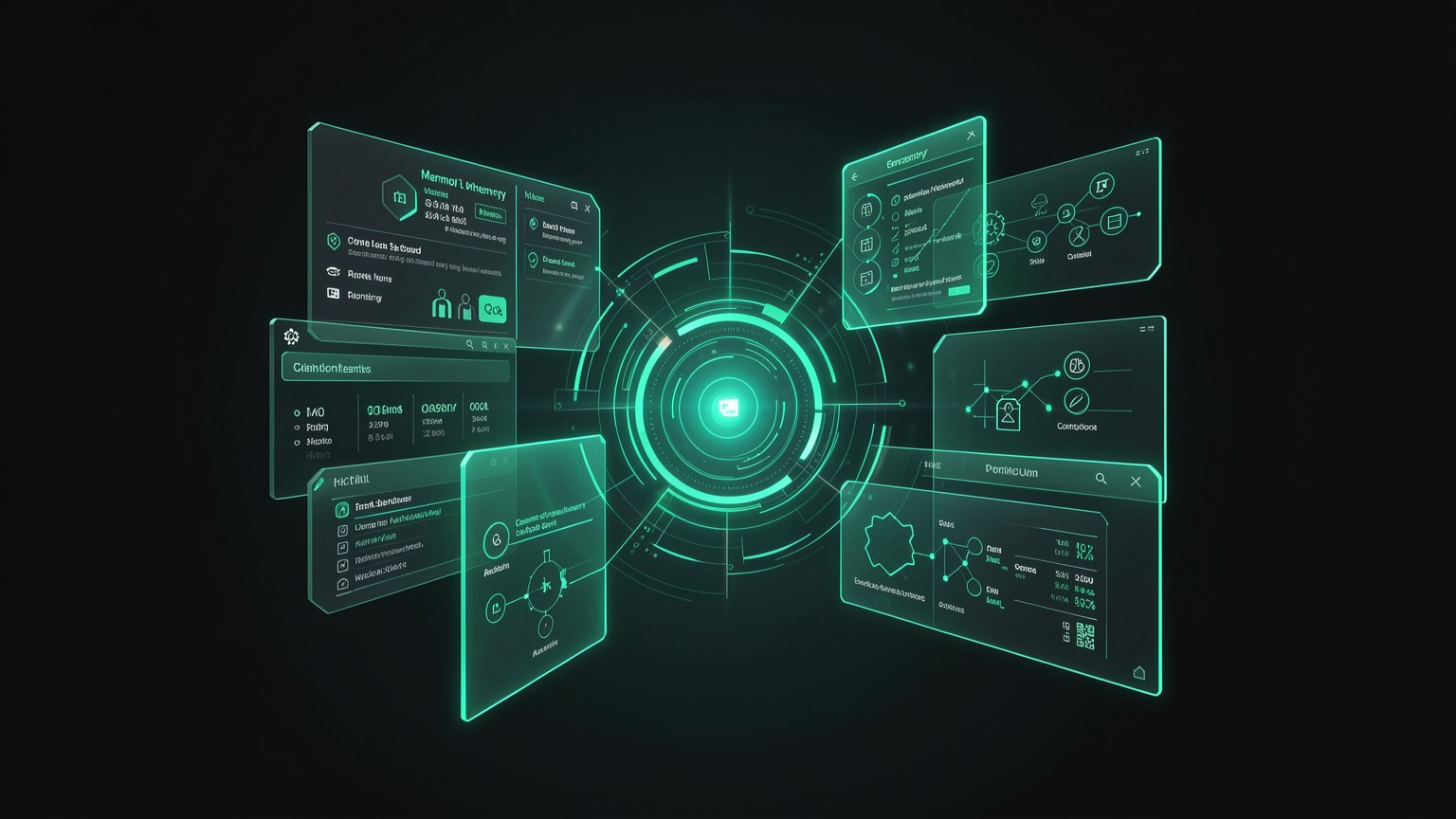
A regular chat forgets everything when you close the window. Hermes doesn’t: it’s a AI OS — a “home” for your memory, personas, skills, and connections. In this project, you’ll open this home and furnish it with three things: connect the memory, create a persona, and add a skill. The result is an agent that knows you and acts your way.
📋 What you’ll deliver
- •Memory connected, with at least one fact about you saved.
- •A persona defining the agent’s tone and style.
- •A skill installed and tested once.
- •The agent returning a proactive suggestion based on what it learned.
Prerequisites: you need the Hermes agent already connected to the local model (Project 2 / module 3.2). All setup for this project is done through the Hermes interface (desktop app or dashboard) — there isn’t a CLI command for every step, so we describe the action on screen.
Key concepts
Hermes as a home for memory, personas, skills, and connections.
What the agent remembers about you between conversations.
Personality is the tone the agent uses when it speaks.
A skill that the agent learns to perform.
🧠 Step 1 — Connect the memory
A memory and the panel Memory from the dashboard. When enabled, the agent saves facts about you (your name, your hardware, your preferences, ongoing projects) and reuses them in future conversations—so you don't have to repeat everything. Since the model is local, these facts stay on your machine, never on a server.
Open the Memory panel
In the Hermes dashboard, go to the Memory (the same as in the screenshot from step 1) and turn on memory if it's still off.
Tell us one fact about yourself
In the conversation, write something like "remember that I use a 36GB MacBook M4 Max and my default model is qwen3-coder-64k". The agent confirms it saved that.
Check the dashboard
Return to the dashboard Memory and see the listed fact. That’s the sign that memory is saving.
✓ Useful facts to remember
- ✓Your hardware (RAM, chip) — helps the agent recommend models.
- ✓Your default model is the one you use for each task.
- ✓Projects in progress and their deadlines.
- ✓Style preferences (keep replies short, in PT-BR, etc.).
✗ Considerations
- ✗Memory isn't a backup: it complements your notes, not replaces them.
- ✗Wrong facts poison responses — review what was saved.
- ✗Delete anything that’s out of date (e.g., you switched machines).
- ✗Without memory, the agent starts from scratch with every chat.
🔎 How to verify this step
Open a new conversation and ask "what’s my hardware?". If the agent answers with the fact you saved—without you repeating it—memory is working across sessions.
Key concepts
Where the facts are listed and can be edited.
The fact survives after you close the conversation.
Everything stored on your machine, nothing in the cloud.
Review and delete incorrect or outdated facts.
🎭 Step 2 — Create a persona
A persona and a set of instructions that defines how the agent’s voice: its tone, level of detail, language, and the role it takes on. It’s the difference between a generic assistant and one that feels like "your" assistant. You can have several personas and switch between them depending on the task.
New here? "Persona" doesn’t change the model’s brain—it changes the instructions that go with each question. It’s like giving the agent a badge: "you’re a strict code reviewer" or "you’re a patient teacher who explains things in Brazilian Portuguese". The model stays the same; its behavior changes.
In the Hermes interface, open the personas area (near the panel Skills) and create one. A good persona outline answers four questions:
Role
"You are a senior programming partner" / "a demanding text editor" / "an Ollama tutor."
Tone
Direct and concise? Warm and informative? Define the “style” of the responses.
Rules
"Always use Brazilian Portuguese", "show the code before explaining", "ask if context is missing".
Context
What it should assume about you (pulled from the memory in step 1—they reinforce each other).
📝 Persona example
"You are my senior programming partner. Be direct and get to the point. Always respond in Brazilian Portuguese. Show the code before explaining it, and say why you made those choices. If you’re missing context, ask instead of guessing. Remember that I run everything locally with Ollama."
🔎 How to verify this step
Activate the persona and do the same question with and without it. The responses should have clearly different tones—this contrast proves the persona is active.
Key concepts
Who the agent “is” for that task.
The style of the responses, from concise to explanatory.
Fixed constraints (language, format, behavior).
One per task; switch depending on the work.
🧩 Step 3 — Add a skill
A skill and a packaged skill that the agent learns to perform—a procedure, a set of steps, a new capability. While the persona changes the way, the skill changes the repertoire. In the dashboard Skills from the dashboard, you can see the installed skills and add more.
The three pillars memory, persona, and skills feed the same local agent, which then produces a personalized response. You don’t switch models — you enrich what surrounds the model. That’s why the operating system matters more than the bare brain.
Open the Skills panel
In the dashboard, go to Skills and see what’s already installed.
Add a skill
Choose/enable a useful skill for you (e.g., summarize documents, create commits, organize notes).
Trigger the skill once
Ask the agent to do a task that uses the skill. Check in Activity that it ran.
🔎 How to verify this step
The skill appears as installed in the panel Skills, and the Activity records that it has been run at least once. Together, these two signals confirm the installation.
Key concepts
Packaged, reusable capability.
List and enable/disable skills.
Log of what the agent executed.
The set of things the agent knows how to do.
🔁 Step 4 — Proactive suggestions
The big shift in the AI OS happens when the agent stops just answering and starts coming back with ideas. With memory + persona + skills in place, it has enough context to suggest next steps: "you mentioned that project last week — want me to pick it back up?" or "I noticed you always summarize PDFs; want me to do that automatically?".
💡 How to prompt a proactive suggestion
- •Finish a task and ask: “Is there anything else you would do here?”
- •Ask: “based on what you know about me, suggest 3 improvements to my workflow.”
- •Set the persona to instruct the agent to “always offer a next step.”
💡 Practical tip
Since the agent runs locally and costs $0 per token, proactive suggestions don't generate a bill. You can let the agent "think beyond the request" as much as you like — that's exactly what paves the way for the background agents in the next project (3.5).
🔎 How to verify this step
The agent does at least a suggestion that’s only possible because of memory — something it “remembered” that wasn’t in the current question. If the suggestion draws on a fact saved in step 1, the OS is integrated.
Key concepts
The agent offers, instead of just answering.
Memory + persona + skills come together to generate ideas.
Thinking beyond the request doesn’t add to the bill.
Proactivity becomes automation with background agents.
✅ Step 5 — Result: an OS that feels like yours
If you made it this far, your Hermes has stopped being a generic chat and become a Customized AI OS: it remembers you, speaks your way, has a new skill, and returns ideas without you asking. It's the same local model as before — but now surrounded by context that makes it truly useful.
🏁 Expected result
- ✓In a new conversation, the agent already knows who you are (memory).
- ✓Responses have the tone you defined (persona).
- ✓It can run the new task you installed (skill).
- ✓Come back with at least one suggestion based on what you learned.
⚠️ If something doesn’t match
- ✗Agent “forgot” you? Confirm that memory is enabled and the fact appears in the panel.
- ✗Tone unchanged? Check whether the persona is active in the conversation.
- ✗Skill didn’t run? Check the Activity panel and make sure the skill is actually installed.
Optional self-check: What’s the difference between a persona and a skill in the AI OS?
🎯 Project summary
Next module:
3.4 — Project 4: GitHub and documents