💡 New here? Three words before you start
- Automate — getting a task done automatically, without you having to press anything each time.
- MCP — a “universal plug” that connects AI to your apps (email, calendar, spreadsheet). You don’t need to understand the acronym; just know it’s the cable.
- Trigger — what makes the automation start: a time, a new email, a click from you.
🔎 What You Can Automate in Your Day
Before plugging in any cables, it’s worth pausing and looking at your day. Where do you the same thing every week, on autopilot? Copying data from one place to another, replying to the same kind of email, putting together the same report—that's where the gold is.
The rule is simple: the task repetitive + predictable + with clear rules = a great candidate. A rare task, or one that changes every time, not so much. Start by writing down 3 annoying tasks you could do with your eyes closed.
✓ Good candidates for automation
- ✓Summarize the day's emails every morning
- ✓Save attachments to the right folder
- ✓Send an alert to your phone when a new order comes in
- ✓Putting together the usual weekly report
✗ Poor candidates (for now)
- ✗Decisions that change every time
- ✗Sensitive conversation with a client
- ✗Something you do once a year
- ✗A task with no clear rule for what's "right"
💡 Practical tip
Next week, write down every time you think, "oh, this again." Each "again" is a candidate. At the end of the week, choose the most frequent and most annoying — this is your first target.
Key concepts
🔌 Connect AI to Your Apps (MCP in Practice)
On its own, AI is like a brilliant appliance cordless: does amazing things, but can't reach your world. The MCP that’s exactly this thread — a universal outlet that connects AI to your email, calendar, and spreadsheet.
The great thing is that you don't need to understand how it works inside. You just authorizes the connection once (“you can read my calendar”), and from then on you can send requests like “check what I have tomorrow and send me a summary.” The AI starts to see and edit in these apps for you.
🔑 The central idea
Think of a power strip in the middle of the table:
- •The AI it’s the device that wants to work.
- •The MCP it’s the ruler: each slot is one of your apps.
- •You decides which cables to plug in — and you can unplug them whenever you want.
💡 Practical tip
Start by connecting one app — what gives you the most trouble. Connecting everything at once gets confusing. Master one connection, build confidence, and only then add the next.
Key concepts
⚡ Triggers: what makes the automation run
Connecting the apps is half the job. The other half is answering: when should AI act? That “when” is the trigger — the spark that gets everything started without you having to give the command at that moment.
There are three easy-to-understand types. Every automation starts with one of them. See the timeline of how a trigger works:
⏰ By time
"every morning at 8 a.m."
The automation runs at a set time. Good for daily summaries and weekly reports.
📬 By Event
"when a new email arrives"
Something happens and the AI responds right away. Good for alerts and automatic replies.
👆 By you (manual) SAFEST WAY TO START
"when I press the button"
You trigger it manually. Ideal for testing at your own pace before switching to automatic mode.
🎯 The pattern to watch for
Start manual, build trust, then switch to automatic mode (by schedule or event). Turning on automatic mode before you trust it is the number 1 mistake beginners make.
Key concepts
🔗 A Simple End-to-End Workflow
Now we put it all together into a sequence: a trigger fires, the AI does the work, and the result ends up in the right place. This trio— trigger → AI → deliverable — it’s the heart of every automation. Look at the diagram:
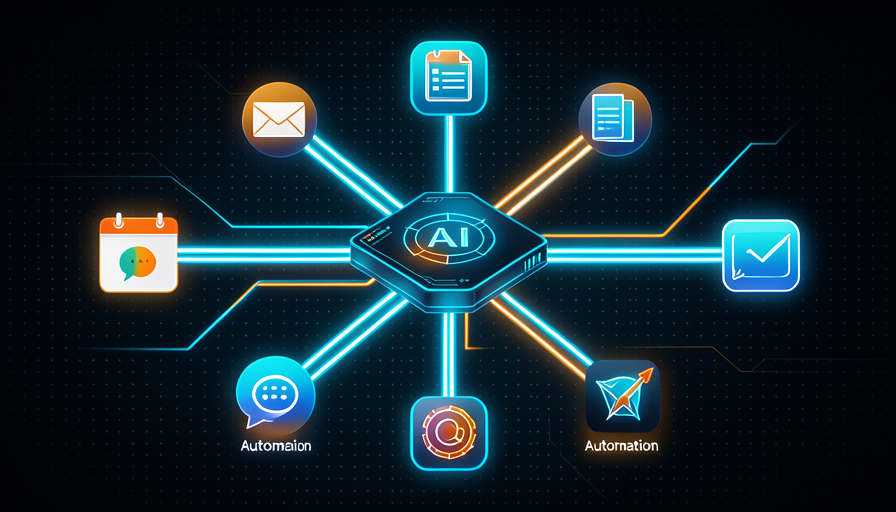
The image below shows the same idea another way: AI at the center, connected to your world, turning input into output. That's exactly what you'll build next.
🧪 Build your first workflow (5 minutes)
Goal: describe a complete automation in 3 steps, ready for you to build. Paste the text below into Claude (with your apps connected), replacing the parts between < >.
Quero montar uma automação simples em 3 passos.

1) GATILHO: começar <quando, ex: toda manhã às 8h>.
2) IA FAZ: <a tarefa, ex: ler meus e-mails não lidos
   e resumir os 3 mais importantes>.
3) ENTREGA: mandar o resultado para <onde, ex:
   uma mensagem no meu WhatsApp/Telegram>.

Antes de montar, me liste o que você precisa que eu
autorize, e como vou testar se funcionou na 1ª vez.
How to know it worked: AI should confirm the trigger, what it will do, and where it will deliver the result—and ask you for only the access it needs. Run it manually once before putting it on autopilot.
Key concepts
🔒 Security and Permissions (The Basics)
Connecting AI to your apps is powerful—and that’s why it calls for some care. The golden rule is to minimum access: give it only what the task needs, and nothing more. If the automation only reads email, it doesn't need to be able to delete nothing.
Think about how you work with a new assistant: start by giving little key, observe, and only expand when you trust it. AI works the same way. And actions that have real consequences (send, pay, delete) deserve "confirm?" before.
✓ Safe habits
- ✓Give only the access the task requires
- ✓Ask for confirmation before actions that make changes
- ✓Test it on something small first
- ✓Review what’s connected from time to time
✗ Risks to avoid
- ✗Give full access “to make things easier”
- ✗Let it delete/send without confirmation
- ✗Connect everything at once without testing
- ✗Forget to turn off old connections
💡 Practical tip
Before authorizing any connection, ask three questions: "What will it be able to see? What will it be able to change? How do I turn it off if I need to?". If you know the three answers, you can move ahead with confidence.
Key concepts
🚫 When NOT to automate
Beginner excitement makes you want to automate everything. But not every task deserves. Knowing when to no automation is only as mature as your ability to build the workflow. Automating the wrong thing costs more time than it saves.
The rule: if the task is rare (you do it once a month), delicate (affects people, money, reputation) or requires human judgment that changes every time — leave it in your hands, or ask AI to just draft it and let you decide.
📊 The three signs to “hand it off”
- •Rare: happens so rarely that setting up the automation isn't worth it.
- •Delicate: a mistake here is costly (an angry customer, lost money).
- •Mutable: the decision depends on the context and changes every time.
Translation: in these cases, use AI to help (draft, suggest), but keep the final decision in your hands.
✋ Before you continue — what's the best first task to automate?
🎓 Module summary
Next module:
2.4 — 🤖 Agents that do the work: delegate entire tasks and have several agents work at the same time.