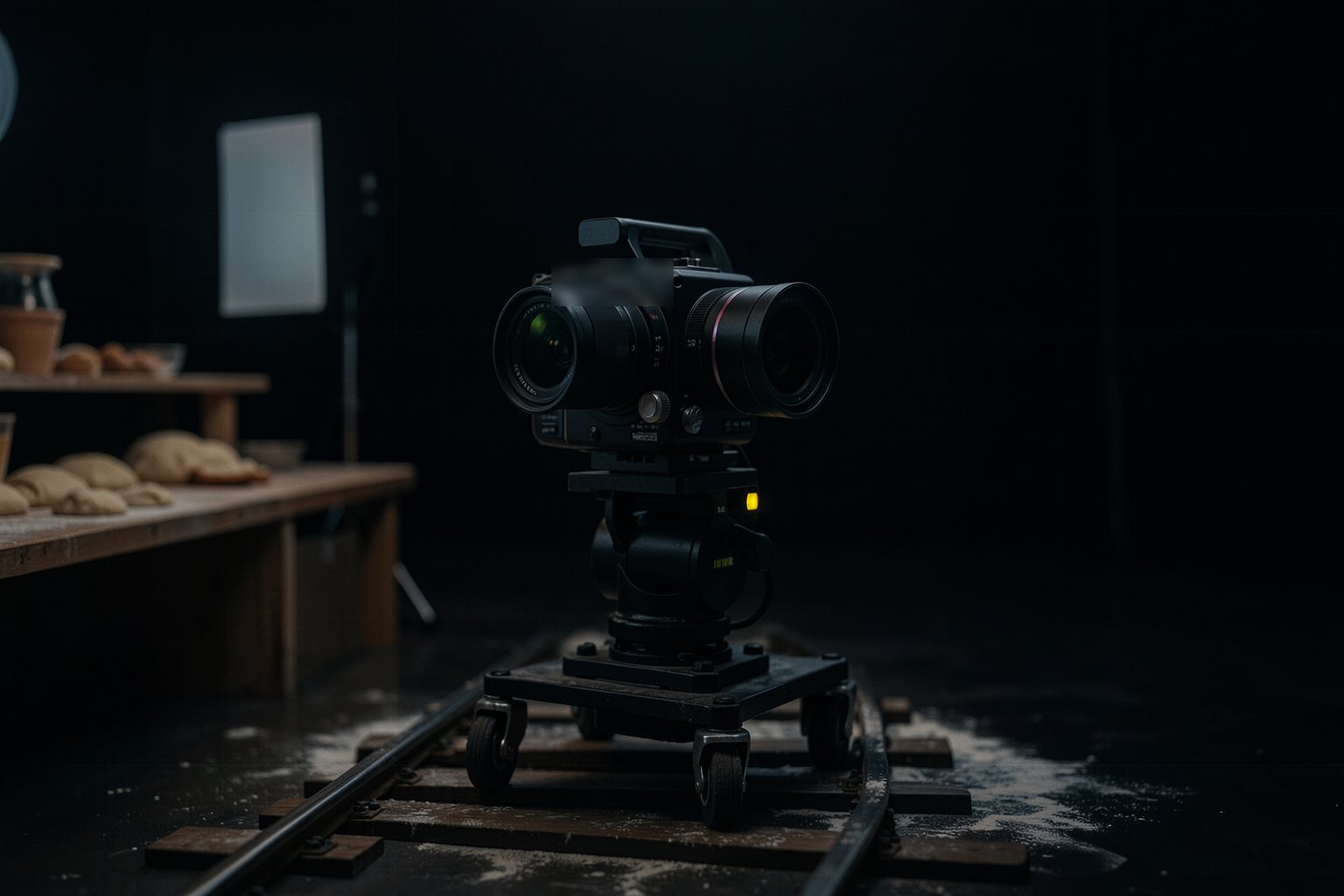
From image to motion: image-to-video and first/last frame
With the approved still, the generator already knows who, where and what light. The prompt now only says what changes: the camera movement, the action and the sound. With first and last frame, you also decide where the shot ends. And before moving on, the page checks the clip.
1What goes in the prompt when the image already exists
2First and last frame: when to use it and where it exists in out/2026
3Joining shots using the last frame of the previous one
4Check the clip's duration, size and aspect ratio on the page
Goal: animate an approved still with a motion-only prompt and check the clip on the page before moving on.
01 · From still to checked clip
Six steps. Click each one.
Click each block in the diagram to see what it does.
If the clip changes the character or the light, go back to the motion prompt: it's probably describing the scene again.
02 · Animating from the image
The example is shot 4 of "The first batch": close-up, low camera, dolly in, 4 s.
1. Motion-only prompt
In image-to-video mode, the still is the starting point. Write the camera movement, the action that happens and the sound, nothing else.
If the result comes out static, name the movement and the speed ("slow dolly in"). If it comes out chaotic, take out actions: one per shot.
Motion prompt for shot 4Slow dolly in. The oven door opens and steam rises against the light. Sound: creak of the door and hiss of the steam.
2. First and last frame
With two frames, the generator creates the path between them. It works for action with a set ending: the peel goes in empty and comes out with the bread.
As of Oct 2026 it exists in Veo 3.1 and in Luma's Ray3 Modify; on the open path, there are official first and last frame templates for Wan 2.2 and LTX-2.5 in ComfyUI (lesson 7).
SourcesGoogle Developers Blog (Veo 3.1); TechCrunch, 12/18/2025 (Ray3 Modify); ComfyUI and LTX documentation (checked on 10/19/2026).
3. Chain clips by the last frame
When the action continues in the next shot, use the last frame of the previous clip as the first frame of the next one. The light and the position of things carry over.
To grab the last frame: pause the clip at the end and export the frame in your editor. If you use a terminal, the command is in the block below.
4. Check before moving on
Duration within the request, width of at least 1280 pixels, and a 16:9 aspect ratio, the same as the scene. A vertical or square clip in the middle of a 16:9 scene turns into black bars in the edit.
What the page doesn't measure, you check by eye: is the character the same? is the movement what you asked for? If not, generate again before moving on to the next shot.
03 · Templates to copy
The sheet for the animated shot and, for those who use a terminal, the command that grabs the last frame.
movimento.txt (template)
Shot: <number and line of the shot list>
First frame: <file of the approved still>
Last frame: <file, or "none">
Motion prompt: <camera movement. action. sound.>
Requested duration: <seconds>
Generator: <name and version (Oct 2026)>
Clip: <plano-NN.mp4>
First, the rehearsal: the two examples are clips made from a photo, without a generator. Then choose your own.
plano-04.mp4
Choose the clip for your shot. It is read here in the browser: nothing is uploaded.
05 · Optional: check in the terminal
Only for those who already use a terminal and have ffmpeg installed (ffprobe reads the video). Download the course from GitHub and run it in its folder: the rules are the same as on the page. For your clip, replace --exemplo with its name (plano-04.mp4); it exits 0 when it passes.
Terminal (in the course folder)
python3 conferir.py movimento --exemplo; echo "saída: $?"
python3 conferir.py movimento --errado; echo "saída: $?"
Example from the repository
$ python3 conferir.py movimento --exemplo; echo "saída: $?"
OK: 6,0 s · 1280×720 · 16:9
saída: 0
$ python3 conferir.py movimento --errado; echo "saída: $?"
Ainda não. O que falta:
 - O vídeo tem 2,0 s; o pedido é de 3 a 15 s.
 - O vídeo é 720×720 (1:1); o pedido é 16:9.
 - O vídeo tem 720 px de largura; o mínimo é 1280 px.
saída: 1
06 · Practice
Generating is done with whatever tool you have. The rehearsal comes first and costs nothing.
Rehearsal · the two example clips
5 min
Under "Check your clip," click "Example that passes" and then "Example with an error." Read what the page says about the second one: it's the kind of message you'll see if your clip comes out in the wrong format.
Done when: the page answers OK: 6.0 s · 1280×720 · 16:9 for the example that passes and, for the example with an error, lists the duration, aspect ratio and width.
Clip · a shot from the still
30 min
Choose an approved still from lesson 3. Fill in the movimento.txt, generate the clip in 16:9 in whatever generator you have (closed or open) and download it with the shot number. Choose the file under "Check your clip."
Done when: the page answers OK: [s] s · [w]×[h] · 16:9 for your clip, with a duration between 3 and 15 s, and the clip and the movimento.txt are in the project folder.
07 · Quick quiz
Four questions. The explanation shows up after each answer.
Question 1 of 4
What should you write in the prompt when the still already exists?
Correct
Character, place and light are already in the image. The prompt says what changes. Describing the scene again can lead the generator to change what you approved in the still.
Not that one
Character, place and light are already in the image. The prompt says what changes. Describing the scene again can lead the generator to change what you approved in the still.Review: Animating from the image
Question 2 of 4
When do the first and last frame help most?
Correct
With a start and an end given, the generator creates only the path between them. It's the way to guarantee where the shot ends, which matters when you cut to the next shot.
Not that one
With a start and an end given, the generator creates only the path between them. It's the way to guarantee where the shot ends, which matters when you cut to the next shot.Review: Animating from the image
Question 3 of 4
The page said your clip is 9:16, in a scene that is all 16:9. What do you do?
Correct
A vertical shot in a horizontal scene ends up with black bars or a crop that loses part of the image. Aspect ratio is a decision for the scene (lookbook); the clip has to follow it.
Not that one
A vertical shot in a horizontal scene ends up with black bars or a crop that loses part of the image. Aspect ratio is a decision for the scene (lookbook); the clip has to follow it.Review: Check your clip
Question 4 of 4
What can the page NOT check in your clip?
Correct
The page reads the numbers in the file: duration, size and aspect ratio. Whether the character changed or the movement is what you asked for is up to you: watch the clip before you move on.
Not that one
The page reads the numbers in the file: duration, size and aspect ratio. Whether the character changed or the movement is what you asked for is up to you: watch the clip before you move on.Review: Animating from the image
Quiz complete
You got {a} of {n} right. If you get them all right, the lesson is marked as complete.
Pick an answer. The explanation appears after you try.
08 · To keep
The image already says itThe motion prompt carries only what changes: camera, action and sound.
Two frames, one pathFirst and last frame guarantee where the shot ends and help you cut to the next one.
Check before you move onDuration, 1280 px and 16:9 by the page; character and movement by your own eye.