Production: from script to film|INEMA.CLUB-PRO

In this lesson you will

  1. 1Order and trim the clips following the edit plan
  2. 2Use the hard cut as the default and the transition only when it tells something
  3. 3Add captions with a transcript made on your own computer
  4. 4Export in the format the page and social networks read

Goal: cut and link the clips into a 12 to 20 s cut in 16:9, with captions, and check the exported file on the page.

01From loose clip to final file

Six steps on the timeline. Tap each one.

Click each block of the diagram to see what it does.

An editing problem gets fixed in the editor, not by generating again: reordering, trimming and swapping the transition cost no credits.

02How to edit, step by step

With the four rehearsal clips from the batch (link in the practice) or with your own.

1. Open the editor

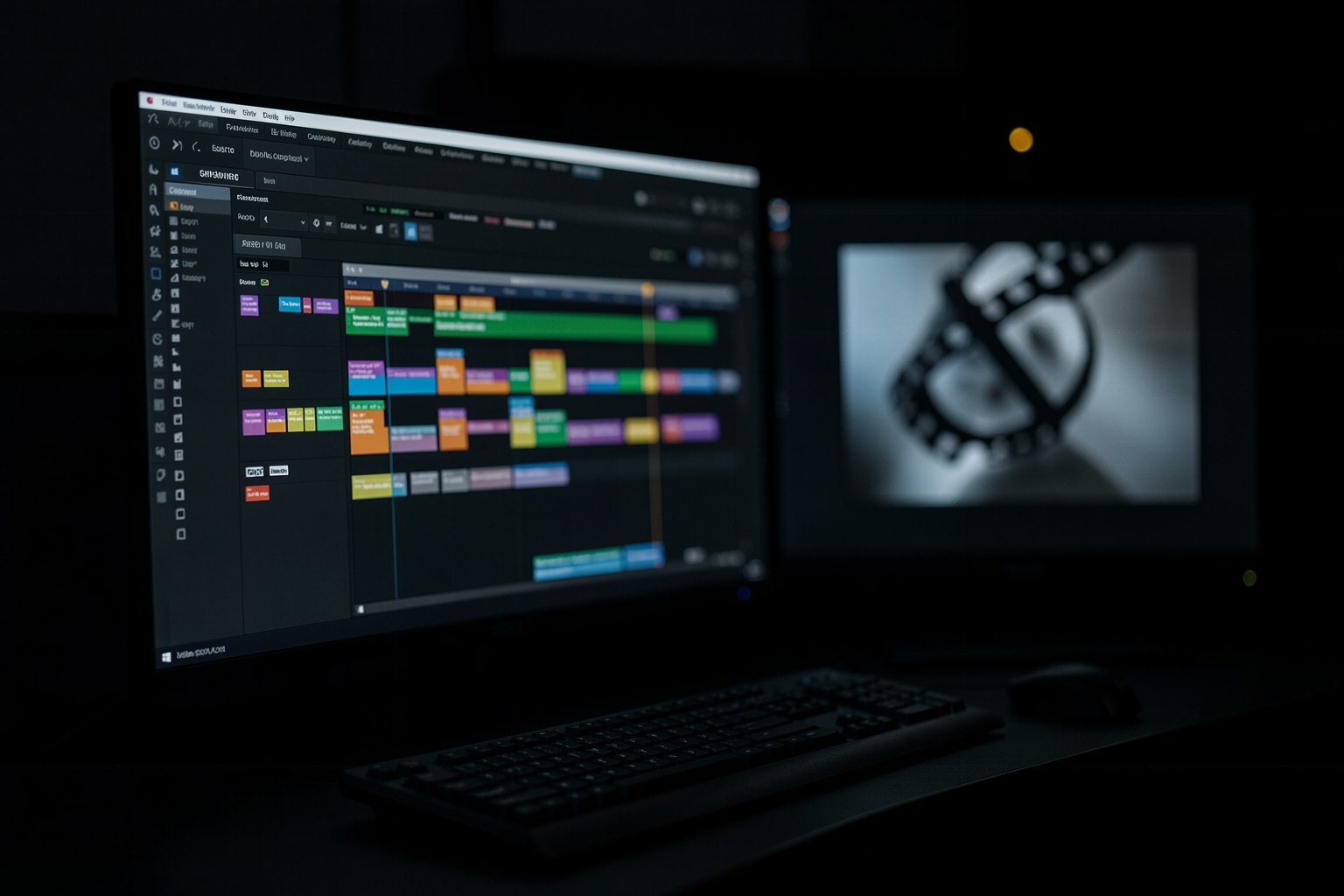
The example uses Concat (0.2.7 beta, Oct/2026): an open-source video editor (AGPL-3.0 license), installed on your computer, with no account, no subscription and no watermark. It runs on Windows, macOS, Linux and Android.

Since it's a beta, it still has rough edges, and the installers aren't signed: on Windows, the warning asks for "More info › Run anyway". If you already use another editor, the steps are the same.

03The free editor in 48 seconds

INEMA video (10/15/2026) about Concat. Vertical short, with captions.

Forget CapCut: Concat is free · 48 sVideo page →

04Template to copy

A cut list to write down your editing decisions before you touch the editor.

cortes.txt (decision list)
Edit: <name> (<target duration> s, 16:9)
# n | clip | in at | out at | transition to the next | sound
1 | plano-1 | <s> | <s> | hard cut | clip ambience
2 | plano-2 | <s> | <s> | J-cut (the sound of 3 comes in early) | <...>
Captions: <yes or no; reviewed?>
Export: MP4 H.264, <width>×<height>

05Check your assembly

Choose the exported MP4. The page reads the duration and size in your browser; nothing is uploaded. First try the example that passes and the example with an error.

montagem.mp4

Choose your video. It is read here in the browser: nothing is uploaded.

06Optional: check in the terminal

Only for people who already use a terminal and have ffmpeg installed (the checker uses ffprobe). Run it in the course folder you downloaded from GitHub; for your own file, replace --exemplo with its name (montagem.mp4).

Terminal (in the course folder)
python3 conferir.py montagem --exemplo; echo "saída: $?"
python3 conferir.py montagem --errado; echo "saída: $?"
Example from the repository
$ python3 conferir.py montagem --exemplo; echo "saída: $?"
OK: 15,0 s · 1280×720 · 16:9
saída: 0

07Practice

Free rehearsal: four clips from the first batch, 5 s each, at 1280×720 with ambient sound, made from still images. Download: shot 1 · shot 2 · shot 3 · shot 4.

Assembly · the four clips in 12 to 20 s

30 min

Assemble the four rehearsal clips (or your own) in 16:9, with hard cuts and at least one J-cut or L-cut, and export as MP4 H.264. Choose the file in "Check your assembly" and save it in the project folder as montagem.mp4.

Done when: the page answers OK: [s] s · [w]×[h] · 16:9, with a duration between 12 and 20 s and a width of at least 1280 px.

Subtitles · burned in and proofread

20 min

Write one sentence of narration for the assembly, record it in your own voice, and generate the subtitles in the editor. Proofread them and export again with the subtitles burned in; in the final film (lesson 8), the subtitles go in after the color.

Done when: the page keeps answering OK: … for the new file and, when you play the video, the subtitles show on screen with the words you recorded.

08Quick quiz

Four questions. The explanation appears after each answer.

Question 1 of 4

A generated shot has a distortion in its last 10 frames. What do you do first?

09To keep

Trim before generating againThe start and end of a generated clip get trimmed in the edit, at no credit cost.
Hard cut by defaultDissolve, match cut, J-cut and L-cut only when they tell something.
Check the fileMP4 H.264 in the delivery format; the page reads duration and size.

Going further

Previous lessonNext lesson